 Convert
How Do You Split a PDF into Separate Pages?
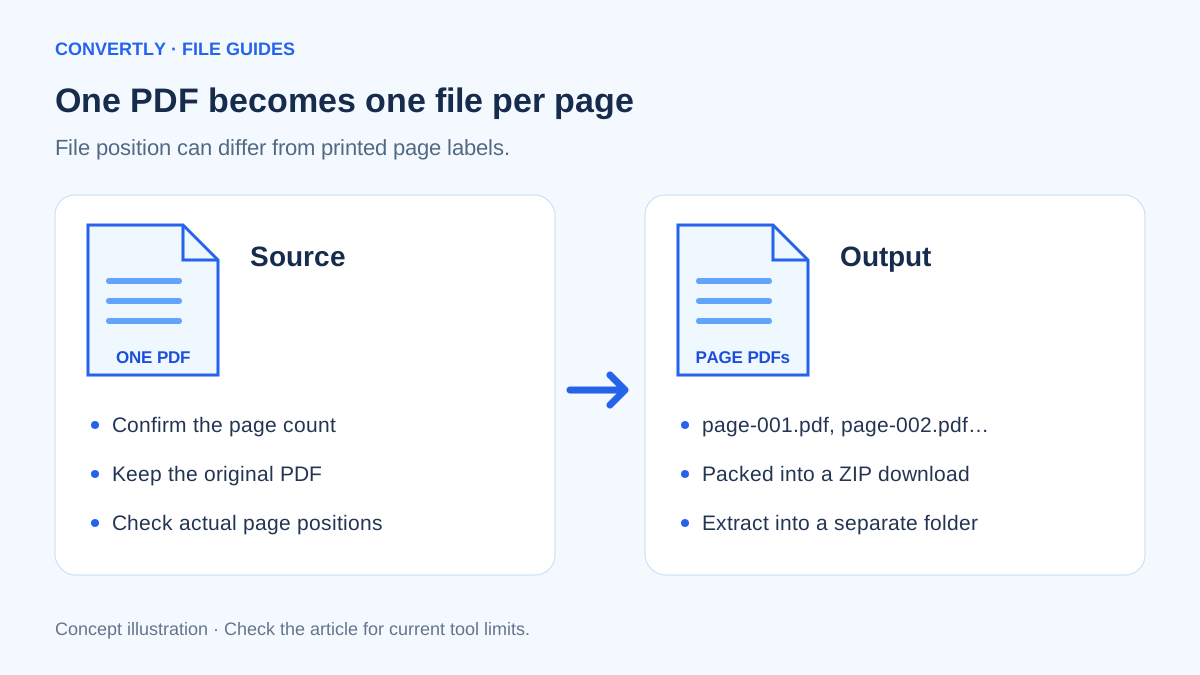
Splitting a PDF can mean several different tasks: making one file per page, extracting a page range or dividing a book into chapters. Convertly's current Split PDF tool performs the first task. It creates an individual PDF for every page and packages those files in a ZIP archive.
That distinction matters. If you need pages 4–7 as one four-page document, the tool does not currently provide a range selector that does it in one step. You can instead split the document, select the needed page files and merge those in order.
Split a document with Convertly
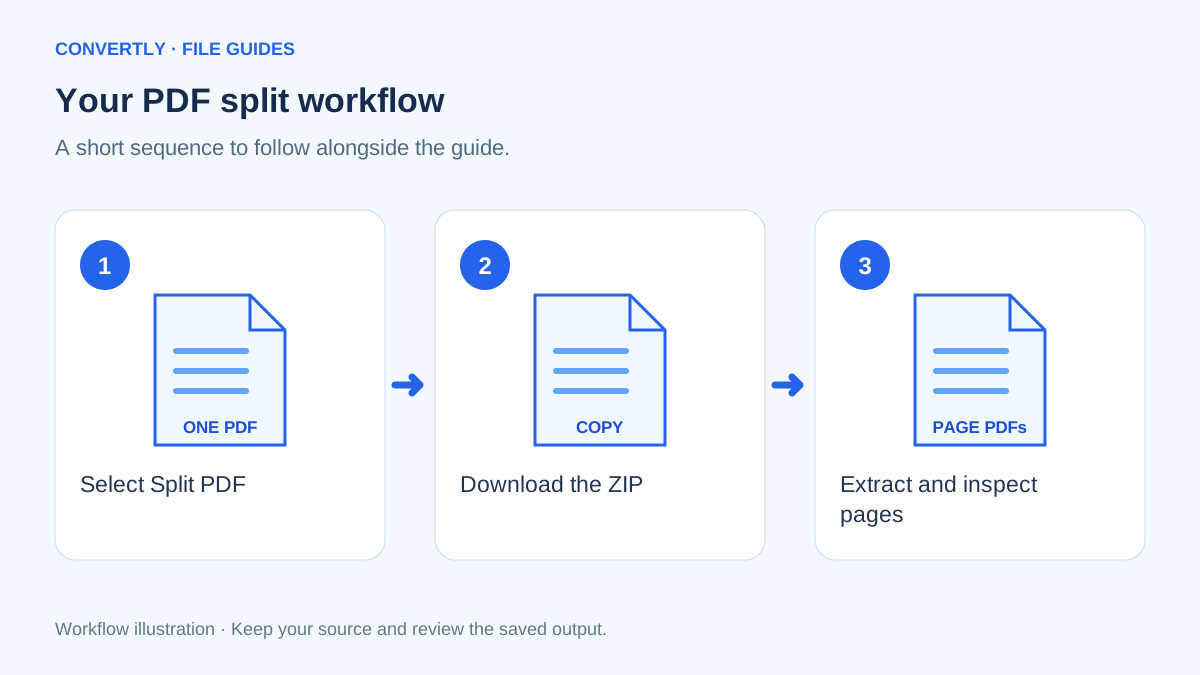
- Open the converter and choose Split PDF.
- Add your PDF. For a first attempt, use one file so that its results are easy to identify.
- Confirm that the output selector shows Split PDF, then start the conversion.
- Download the resulting ZIP archive.
- Use your device's archive utility to extract the ZIP into a new folder.
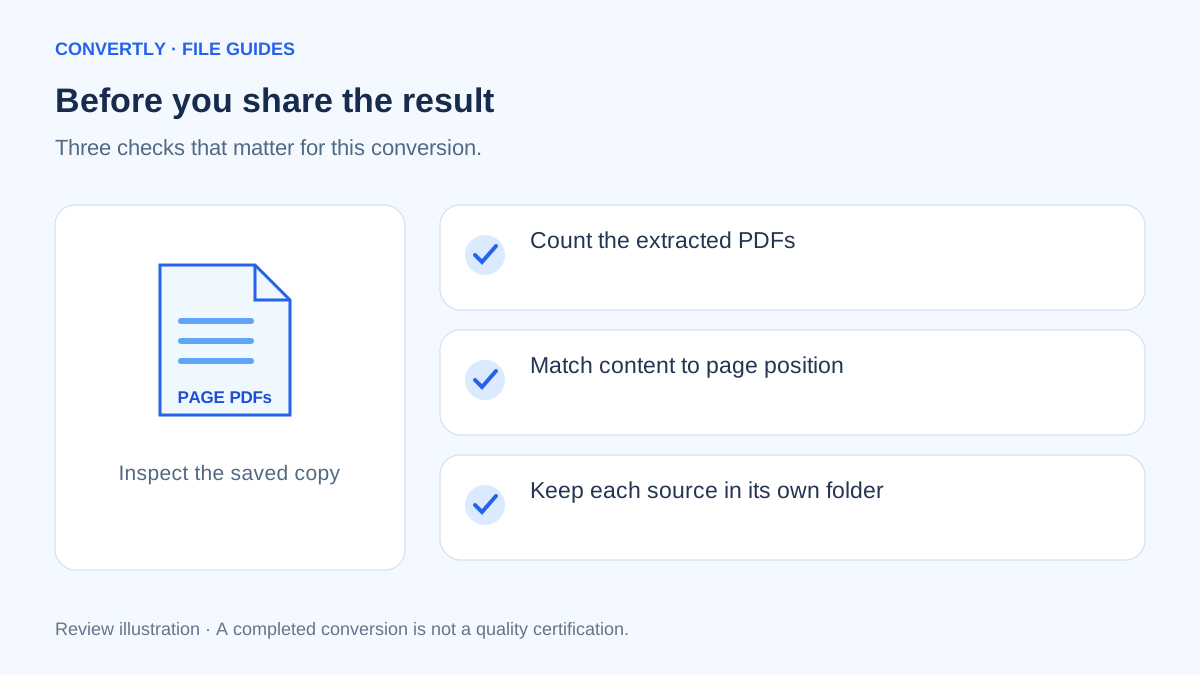
- Open several page PDFs, including the first and last, and compare the number of files with the original page count.
Page files use sequential names such as page-001.pdf and page-002.pdf. Keep those numbers intact while checking the result. They describe position in the source document, not the printed page number visible on the page.
Why does the download end in .zip?
A browser cannot put a whole collection of separate PDFs into one ordinary PDF download. Convertly groups the generated page files in an archive so you can download them together. The ZIP is packaging; the extracted documents are still PDFs.
Extract the archive before attaching individual pages to a message or upload form. A recipient asking for a PDF may reject the ZIP even though it contains valid PDF files. Also verify that you selected the page you intended rather than sending the full archive by mistake.
How can you create a selected page range?
After extraction, identify the required page files by opening them. Then choose Merge PDF and add only those files in the correct order. For example, to create a document from source pages 4–7, merge page-004.pdf through page-007.pdf.
Review the combined document before sharing. A source may include a cover page that shifts the relationship between the printed page label and the actual page position. The fourth page in the file is not always the page printed as “4.”
What can go wrong?
An encrypted or damaged source may fail to load. A very large PDF may also use more memory than your browser can provide, even when it is under the 100 MB input limit. Close unnecessary tabs and use a suitable local document application if your device cannot complete the operation.
Splitting is not an OCR operation. A scanned page stays a scanned page; separating it does not automatically make its text searchable. Likewise, do not expect signatures, form behavior, document-wide bookmarks or specialized accessibility features to be preserved as a complete original document.
Choose a folder before extracting the ZIP
Splitting two different documents can create identical page filenames in their separate archives. Extract each result into its own clearly named folder. Mixing both sets into one directory can cause collisions or make page-003.pdf ambiguous, even though each archive was produced correctly.
A useful folder name includes the source document and a short purpose, such as report-pages-for-review. Keep the source PDF next to your notes rather than renaming the page files immediately. Once you have confirmed the sequence, copy only the pages you need into a separate sharing folder.
Check file position against printed page labels
A report may begin with a cover and contents page before the printed numbering starts at 1. In that case, page-003.pdf might be the first numbered content page. A scanned booklet can add another complication when one PDF page contains two printed pages side by side.
Use the actual page contents to identify the right file. Do not translate a request for “page 5” into page-005.pdf without looking. If a recipient refers to a printed label, open the source, locate that label and then match it to the extracted page position.
Splitting does not change what a page reveals
A single page can still contain sensitive information, annotations or content you did not intend to share. Read the entire extracted page, including headers and footers, before attaching it to a message. Splitting is selection by page, not a redaction function.
Likewise, a scanned page is still an image-based page after extraction. If you need searchable text, that requires an OCR workflow. If you need a cropped region, that requires a page-editing or image-editing workflow. Separating those tasks helps you choose the appropriate tool and check the result correctly.
Build a short excerpt from the right sources
To create an excerpt containing a title page and two nonconsecutive pages, extract the source and identify the three page PDFs. Then add them to Merge PDF in the required reading order. Review the combined excerpt as a new document before sending it.
Keep a note of which original positions you selected. The new excerpt's page numbers describe its own sequence and may differ from the labels visible in its contents. A short explanation to the recipient can prevent confusion, especially when the excerpt refers to sections that are not included.
What to do when extraction seems incomplete
First, confirm that you have opened the downloaded ZIP rather than an older archive with a similar name. Next, compare the extracted PDF count with the source page count in a PDF viewer. Some file managers display only part of a long directory listing until you scroll.
If files are missing or will not open, retain the original and repeat the operation with one source document in the queue. Check whether your device has enough storage for the archive and the extracted copies. For a very large or unusual PDF, use a suitable local document application rather than assuming a partial result is complete.
Common questions
Does splitting delete pages from my original?
No. Convertly creates new output files. Keep the original so you can check the sequence or try another workflow.
Why is a one-page file still large?
The page may contain high-resolution scans or other substantial resources. A smaller page count does not guarantee a small byte size.
Can I split confidential documents here?
The PDF processing runs in your browser. Use a trusted device, follow your organization's document rules and read the site's Privacy Policy before choosing a workflow.