 Convert
How Do You Rotate a PDF and Save the Pages the Right Way Up?
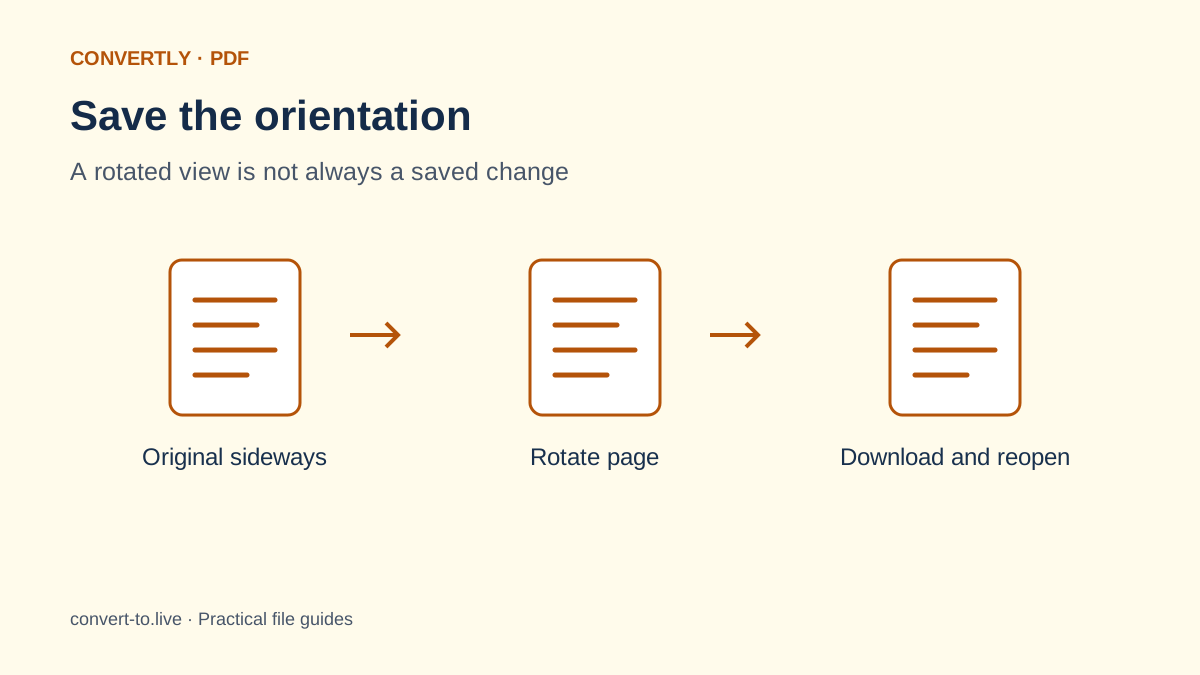
To rotate a PDF and keep the change, use a page rotation tool, save a new PDF and reopen that saved copy. A viewer's temporary rotate command may only change how the document looks during the current session. Reopening the download is the quickest practical check.
Convertly offers a simple Rotate PDF tool that turns every page ninety degrees clockwise. It is useful when an entire scan is sideways in the same direction. It is not a selected-page editor, so check your document before applying it to a mixture of upright and sideways pages.
Inspect the whole PDF first
Open the original and look through more than its first page. A scanner can produce a mostly upright document with one sideways landscape sheet in the middle. Rotating the whole file would solve one page while turning the others incorrectly.
Make a note of the pattern: all pages need a quarter turn, all are upside down, or only a few are wrong. Keep the original unchanged in a separate folder. This small inspection determines whether Convertly's all-page rotation is appropriate or whether you need a tool with individual page controls instead.
Rotate the view versus rotate the page
A PDF viewer may let you turn the display for comfortable reading. That can be convenient, but it does not necessarily write the new orientation into the file. If you send the unchanged original, the recipient can still see the same sideways pages you started with.
A page rotation tool changes the saved document's page orientation information. The content should appear in that orientation when the new file is opened by a compatible viewer. The important distinction is the output: you need a saved, downloaded PDF, not just a screen that temporarily looks correct while the original remains unchanged.
Rotate every page in Convertly
Choose Rotate PDF from Convertly's tools, add the PDF and check that the output menu says Rotate PDF. Press Convert files and wait for completion. Download the new PDF and give it a clear name so you can distinguish it from the original scan.
The current tool adds ninety degrees clockwise to every page's existing rotation. It does not offer a page-range field or separate left and right buttons. If your document needs individual corrections, stop and use a page editor that supports selecting pages. Do not apply an all-page operation just because it is the first rotation option available.
What if the pages need a different turn?
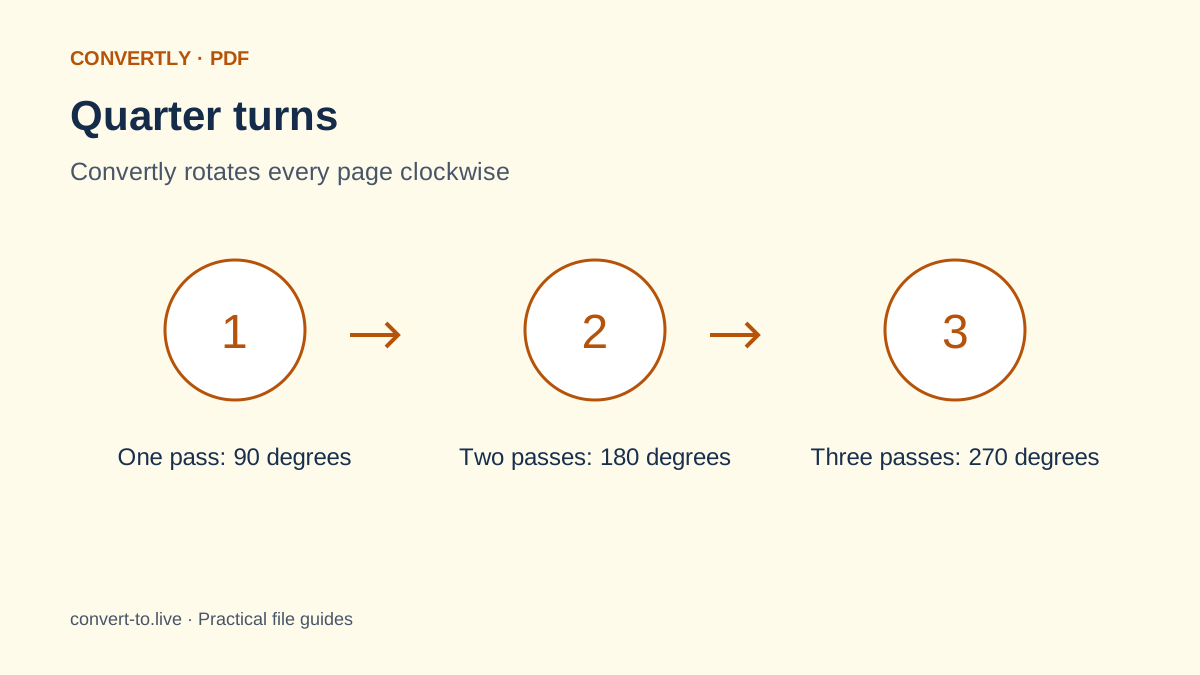
One quarter turn clockwise is ninety degrees. Two quarter turns produce a half turn, and three produce the equivalent of a quarter turn counterclockwise. In Convertly, additional turns require downloading the result and processing that saved result again.
For example, an upside-down file needs two quarter turns. Keep the intermediate copy clearly named, then reopen the final output to confirm the orientation. For complex documents, a dedicated page editor with direct angle controls is usually easier to manage. More conversion steps mean more opportunities to accidentally choose the wrong intermediate file, even when the operation itself is straightforward.
Handle a mixed-orientation PDF carefully
When only selected pages need attention, use an editor with thumbnails and page selection. Select the affected pages, apply the needed turn and save a new copy. Adobe's page organization guidance describes selected-page rotation, which is a different workflow from Convertly's all-page tool.
Another possible approach for simple documents is to separate pages, correct the necessary files and merge them again. However, rebuilding a PDF can affect document features. Do not use that approach casually for signed forms, linked documents or files with important interactive behavior. Choose an editor and validation process appropriate to those requirements.
Rotation is not deskewing
A quarter turn fixes a page that is sideways. It does not straighten a scan that leans by a few degrees, correct perspective or flatten a curved book page. Those issues require deskewing, perspective correction or a better scan of the original document.
Look at the text lines before deciding which problem you have. If they run roughly vertically, a ninety-degree turn may help. If they run mostly horizontally but slope across the page, use a scanning or image correction workflow instead. Applying repeated quarter turns to a slightly tilted page will only move the tilt into a different orientation.
Protect document features that matter
For a routine reading copy, saved page rotation can be a small change. Nevertheless, any PDF edit deserves extra care when the document contains signatures, form fields, annotations, links or other features you rely on. Do not assume that a visually correct page proves all of those features remain valid.
For signed documents, retain the original and follow the sender's instructions before editing. Verify any signature status in suitable PDF software afterward. If a file is encrypted or cannot be read, Convertly may report an error; the tool is not a way to bypass permissions or recover a damaged PDF.
Check the saved output before sending
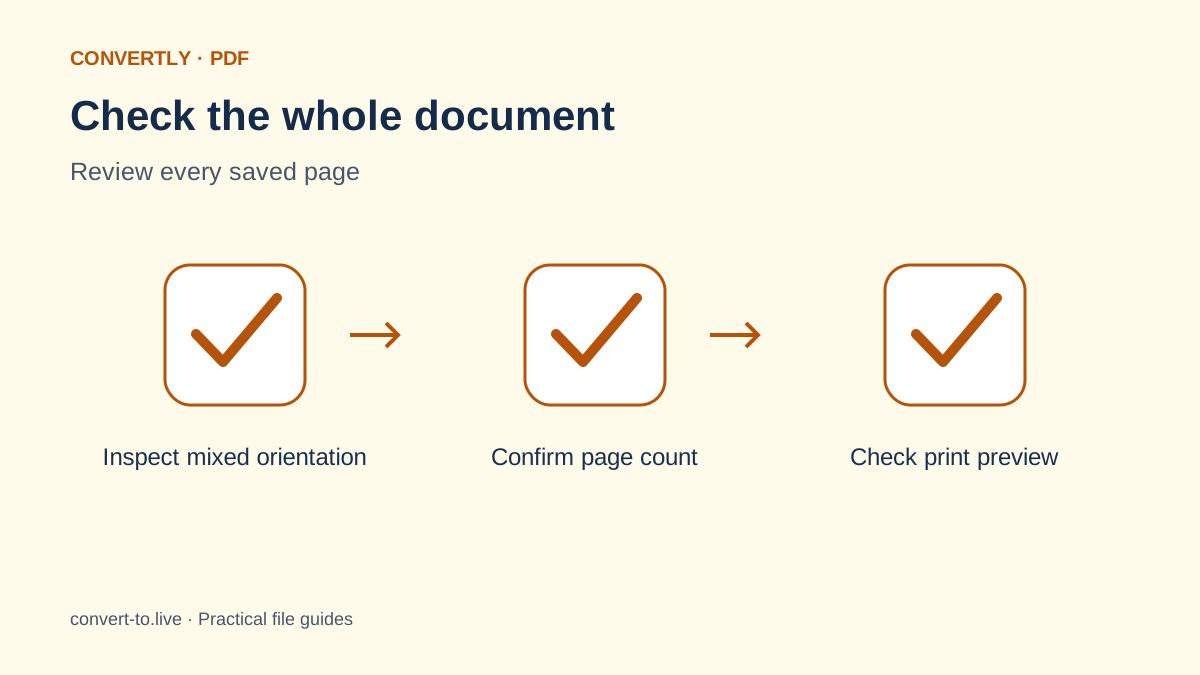
Close the preview and open the actual downloaded file from your device. Scroll through every page, including pages that were originally upright. Check the page count, margins, visible content and whether landscape pages appear as intended. A viewer's automatic fit setting can hide differences, so zoom in where needed.
If printing is the goal, inspect print preview as a separate step. Print orientation, scaling and page rotation interact, and a correct on-screen view does not guarantee the paper layout you want. Test a small selection before printing a large document. Keep the final corrected file somewhere easy to identify before attaching it to an email or form.
Common questions
Does rotation make the writing sharper?
No. Rotation changes orientation; it does not restore blurred letters or increase the original scan quality. If the source is unreadable, request a clearer scan rather than expecting an orientation change to repair it.
Why did the PDF turn sideways again?
You may have reopened the original, used a temporary view command or attached the wrong download. Compare filenames, open the saved output directly and confirm that your editor actually produced a new file.
Can I rotate files locally without signing up?
Yes. Convertly processes this PDF operation in your browser without requiring an account. Save the output before closing the session. For confidential documents, also consider your device, shared folders and the destination where you plan to send the corrected file.