 Convert
How Do You Convert WAV to MP3 Without Making the Audio Sound Bad?
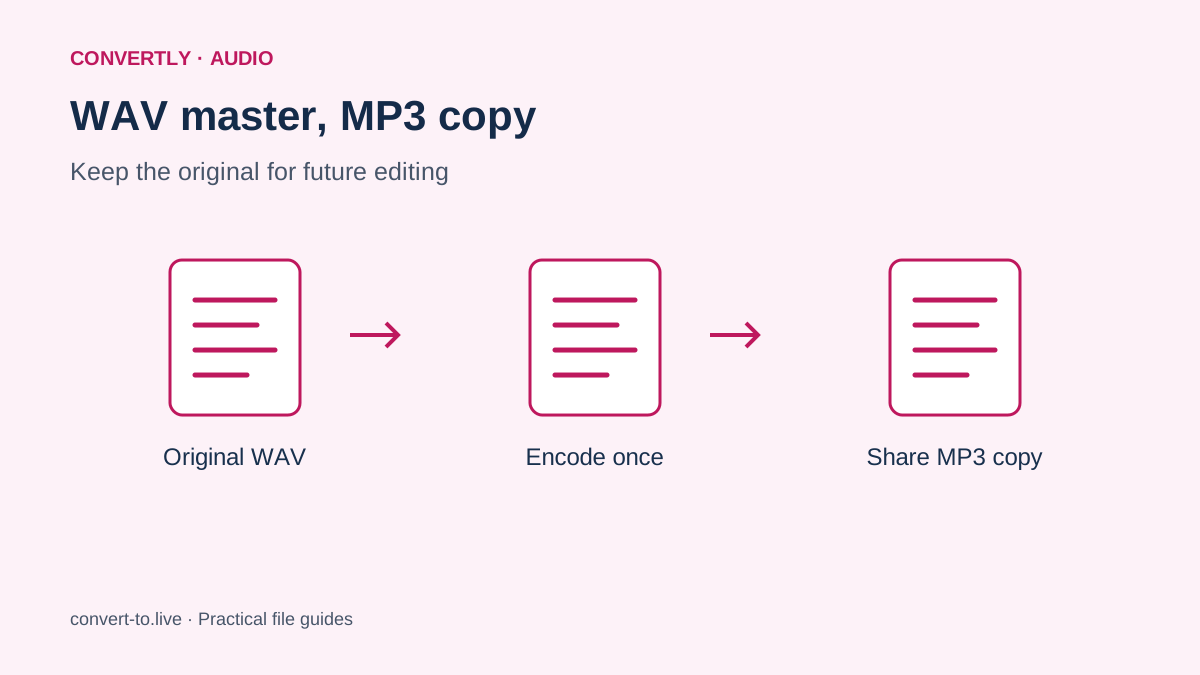
To convert WAV to MP3, choose an audio converter, add the WAV recording, select MP3 and save the encoded copy. MP3 uses lossy compression, so the sensible goal is a useful listening copy with an acceptable size, not a promise of zero quality loss.
Keep the WAV as your master if you might edit, remix or archive the recording later. This guide explains Convertly's current WAV-to-MP3 workflow, its fixed export bitrate and a listening check that helps you decide whether the result is right for your purpose.
Decide why you need an MP3
A large WAV can be inconvenient to attach to a message or upload to a service with a file limit. MP3 often offers a smaller listening copy and broad playback support. That can make sense for a spoken update, rehearsal recording or a finished track that needs to be shared easily.
However, check the receiving service before converting. A project collaborator may want the original WAV for editing, while a distribution system may have its own delivery specifications. Choose the format that meets the actual requirement. Smaller is helpful only when the resulting file remains suitable for the person or system receiving it.
Understand what bitrate changes
Bitrate describes how much encoded data is used for each second of audio. At a constant rate, longer recordings create larger files. A higher rate allows more data, but it cannot fix clipping, background noise or a low-quality source recording.
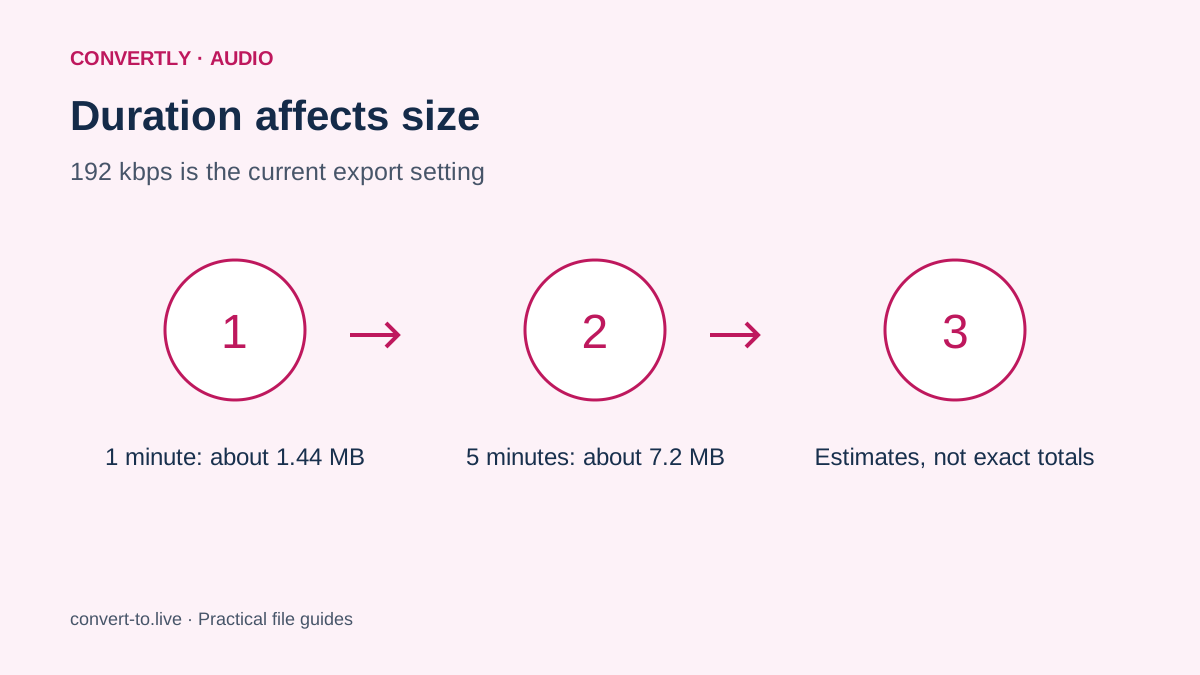
Convertly currently exports MP3 using a fixed setting of 192 kilobits per second. The site does not expose a menu for selecting 128, 256 or 320 kilobits per second. Its image quality slider is not an audio bitrate control. If your destination requires a different MP3 setting, use an audio encoder that offers that setting explicitly and verify its output.
Check the WAV before conversion
Listen to the original from start to finish when possible, or sample the beginning, middle and end for a long recording. Confirm that the intended voice or music is present. Check for unexpected silence, distortion and missing channels before you blame a later export for problems already in the source.
Also check the file size. Convertly's current video and audio processing limit is thirty-two megabytes per file. A long uncompressed WAV can exceed that quickly. Use a suitable desktop audio tool for larger recordings rather than trying to force a file through a workflow that clearly reports a lower media limit.
Convert the recording in Convertly
Open Convertly and choose Audio Converter. Add the WAV and choose MP3 in its output menu. Leave trimming settings at their default values if you want the full recording. Press Convert files and keep the tab open while the browser prepares and processes the audio.
The first media conversion may take longer because the browser needs to load the conversion engine. A slow start does not necessarily mean the audio is broken. When conversion finishes, download the MP3 and open that saved copy in a normal audio player. Processing happens locally; the recording is not sent to a conversion server by this workflow.
Estimate the size before exporting
At 192 kilobits per second, one minute of audio contains roughly 1.44 megabytes of encoded audio data using decimal megabytes. Five minutes is therefore around 7.2 megabytes before small container and metadata differences. This is an estimate, not a guaranteed exact download size.
Use the estimate to see whether an MP3 is likely to fit the recipient's limit. If the limit is tighter, the choices may include a shorter recording or a different encoder setting elsewhere. Repeatedly converting the same MP3 does not provide a reliable size plan and can add another lossy generation without solving the underlying duration requirement.
Compare the sound fairly
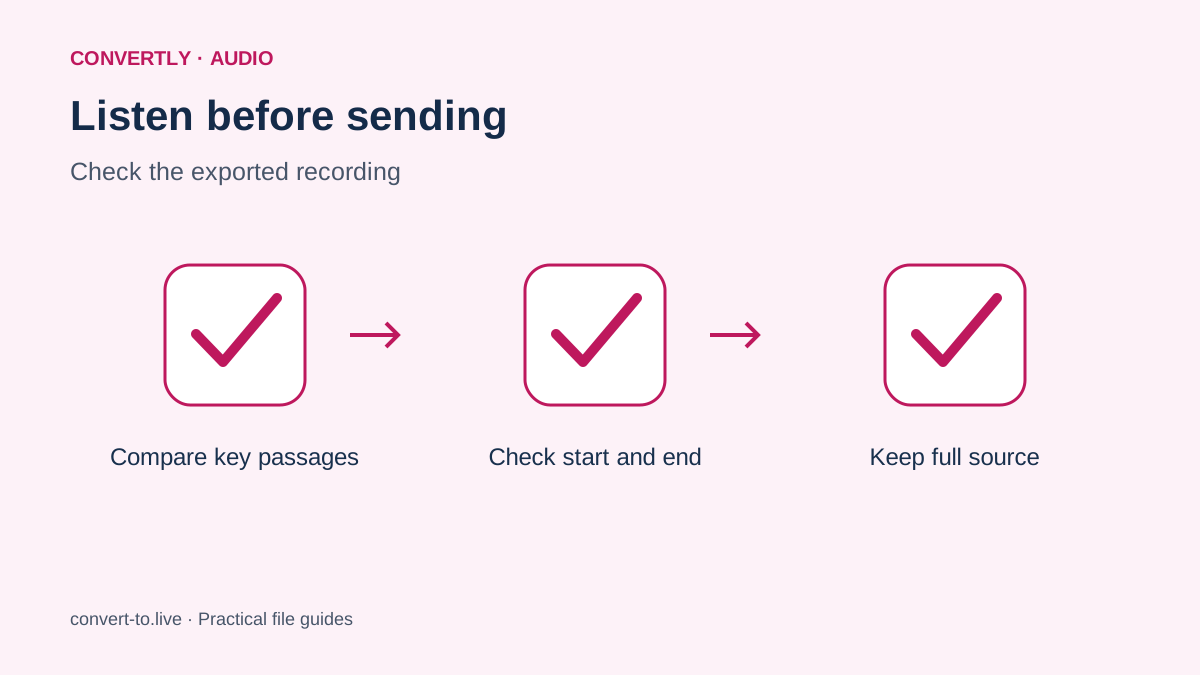
Listen to the WAV and exported MP3 through the same headphones or speakers, at comparable volume. Start with the passages most likely to reveal problems: quiet speech, sharp consonants, cymbals, room ambience or a dense musical section. Then check that the beginning and ending were not cut off.
Do not judge by filename or size alone. A small file can be perfectly adequate for a spoken message, while a larger file can still contain an obvious recording defect. If you notice a difference that matters, return to the original WAV and consider another export method. Avoid using the first MP3 as the source for repeated experiments.
Keep trimming separate from conversion
Trimming changes the content and duration, while encoding changes how that content is stored. If you only need a format change, ensure no start offset or duration restriction has been entered. An unexpectedly short MP3 can result from a leftover trim setting rather than a failed encoder.
If you intentionally need an excerpt, choose the section carefully and listen to the saved result. Include enough context for the listener and avoid abrupt cuts through words. Keep a full original outside the browser. A short sharing copy should not replace your only complete recording, especially when you may need to revise the excerpt later.
Handle errors methodically
If conversion fails, confirm that the source is a real, readable WAV and that it fits the media limit. WAV is a container and different recordings may use different audio encodings. Try opening it in a trusted audio application to check whether that application can read the file normally.
Close unnecessary tabs and retry a small known-good file if you suspect memory pressure. Do not repeatedly reload before saving finished downloads. If the browser cannot support the source, a desktop converter can be more appropriate. Never change the filename extension to pretend a WAV is already an MP3; the underlying audio must actually be encoded.
Common questions
Will converting MP3 back to WAV restore quality?
No. An uncompressed copy can hold the decoded audio, but it cannot recover information removed during an earlier lossy encoding. Keep the original WAV if future editing or archiving matters.
Can I convert several WAV recordings together?
You can add a batch within the site's file count and media limits, subject to browser memory. For important recordings, test one first and review each downloaded result. A completed batch is not proof that every source contained the expected content.
Does conversion remove noise or improve a quiet voice?
No. Format conversion does not perform a full audio restoration or mixing process. Address noise, clipping and level problems in an audio editor, export a suitable master and then create the MP3 listening copy from that master.