 Convert
How Can You Merge PDF Files Without Uploading Them?
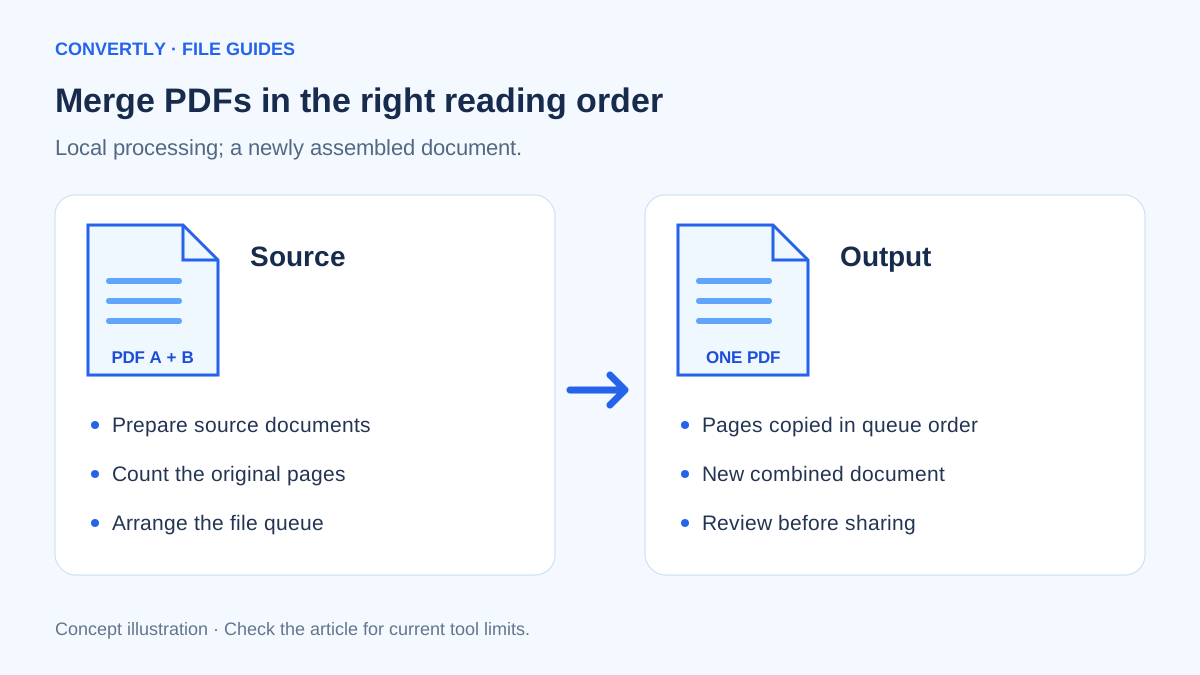
You can merge PDFs without uploading their contents by using a tool that performs the merge on your device. Convertly copies pages from the selected PDFs into a new document in your browser. That local processing is separate from the website requests used to load the tool.
A useful merge starts with organization. Decide the final reading order and keep untouched source copies. Combining the wrong versions into one polished-looking file is a common mistake that compression or format settings cannot fix.
Prepare the files in reading order
Open every input PDF and confirm that it is readable and complete. Write down the page count of each file. For a packet containing a cover letter, résumé and certificates, note the expected total before merging. This makes it much easier to spot a missing document.
Convertly uses the queue order. It does not currently offer a page-thumbnail organizer for rearranging individual pages during the merge. Add documents deliberately, or clear the queue and add them again if the order is wrong.
Merge your PDFs in Convertly
- Choose Merge PDF from the PDF tools.
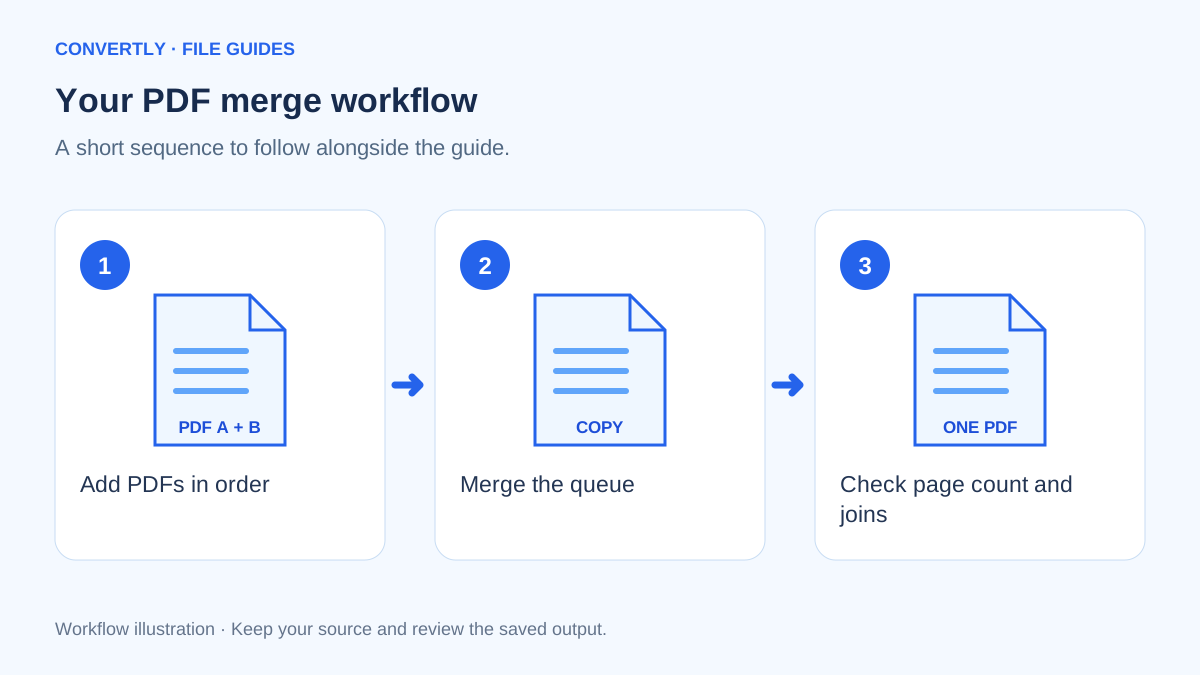
- Add the first PDF, then add the remaining documents in the order they should appear.
- Read the queue from top to bottom. Confirm the filenames and remove any duplicate.
- Select Merge PDFs to create the combined document.
- Download the merged PDF and open it in a separate PDF viewer.
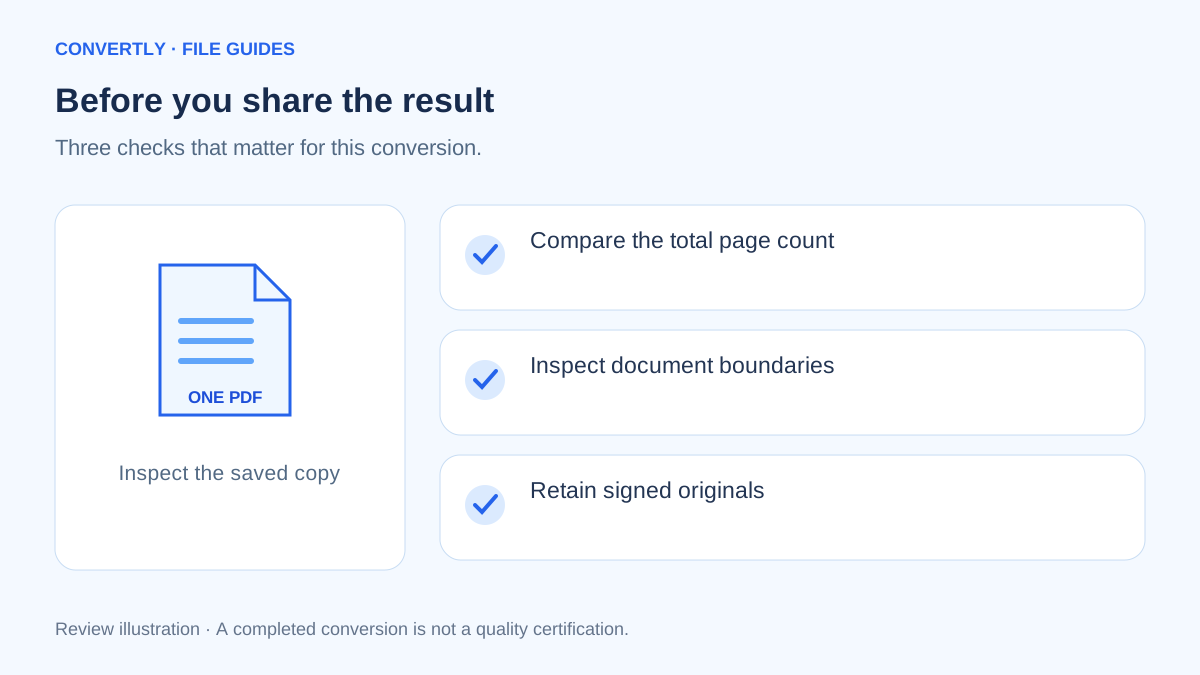
- Check the total page count and inspect the boundaries where one input ends and the next begins.
The interface accepts up to 20 files per batch and 100 MB per file. Several large PDFs can still exceed the memory available on a phone or browser. Work in smaller groups when needed, keeping a clear record of the order.
Does merging make the PDF smaller?
Not necessarily. Joining pages is different from optimizing images or rewriting a document for a smaller file size. Convertly's merge tool is not a dedicated PDF compressor, so do not assume the combined output will fit a lower upload limit.
Check the saved file rather than adding up sizes and treating the sum as exact. A recipient might also limit the number of pages, permit only certain document types or require each attachment separately.
What needs extra care?
Password-protected or damaged PDFs may not open in this tool. If you are authorized to use an encrypted document, obtain an appropriate unprotected copy through its owner or your document application. This tool is not a password-removal service.
Do not assume that digital signatures, interactive forms, bookmarks, embedded attachments or accessibility structure will survive unchanged in a newly assembled PDF. For a signed contract or a document with legal significance, retain the original and ask the recipient whether a merged copy is acceptable.
Make a document manifest before merging
A simple manifest is a short list of input filenames, document versions and page counts. For example, you might list a two-page cover document, a three-page report and a one-page appendix, expecting six pages in the finished packet. This is a planning example, not an automatic page-count feature of the converter.
Use the manifest to check the queue rather than trusting a file manager's sort order. Alphabetical sorting can place appendix-10 before appendix-2, and a recent-files picker may show documents in a different sequence from your intended reading order. Add files deliberately and confirm the names displayed in the queue.
Separate whole-document order from page order
Merge PDF adds each input document's pages in their existing order. It does not let you drag individual page thumbnails into new positions. If a source PDF contains pages in the wrong order, prepare a corrected source or split it into individual pages and merge those page files in the desired sequence.
That extra preparation is worthwhile when assembling evidence, reference material or a presentation packet. Otherwise, a correctly ordered group of filenames can still produce a document whose internal pages are wrong. Check the contents of each source before adding it to the larger merge.
Local processing still needs a trusted environment
Processing in the browser avoids uploading conversion files through this tool, but it does not make a shared device private. Your downloads may remain in a common folder. Browser extensions, device software and anyone with access to the machine are separate considerations from the converter's architecture.
For workplace documents, follow your organization's handling rules even when a tool says that processing is local. Save the output to an appropriate location and remove unnecessary temporary copies through your normal approved process. Do not assume closing the page deletes the original or the downloaded result from your device.
Review the output as a new document
Open the merged PDF independently rather than relying on the converter's completion message. Check that each document begins where expected, that portrait and landscape pages display sensibly, and that no page appears twice. Compare the final count with your manifest.
Try selecting text and using a link if those features matter to the recipient. A readable visual preview does not prove every interactive or accessibility feature behaves as it did in the source. If the original has signatures or specialized document controls, obtain guidance before relying on the merged version.
Plan for a recipient with a strict size limit
If the merged packet is too large, decide whether all pages are required. Removing an unnecessary duplicate or obtaining a properly optimized scan can be more sensible than repeatedly merging the same files. The merge tool is not an automatic PDF size-target service.
When a recipient permits separate attachments, clearly named individual PDFs may be preferable to a very large combined file. When one file is mandatory, use a dedicated PDF optimization workflow and verify that it preserves the detail you need. Keep both the untouched sources and the final submitted version.
Common questions
Are my PDF contents stored in my account?
No. This tool does not create an account file library. Download the result before leaving the page.
Can I merge a Word document directly with a PDF?
Convertly's merge tool accepts PDFs. Export the Word document as PDF in the application that created it, check that export and then merge the PDF copy.
Can I split the result later?
Yes, the Split PDF tool can create one PDF per page. It does not reconstruct the original filenames or document groups automatically.