 Convert
How Can You Convert WebP to JPG for an Upload Form?
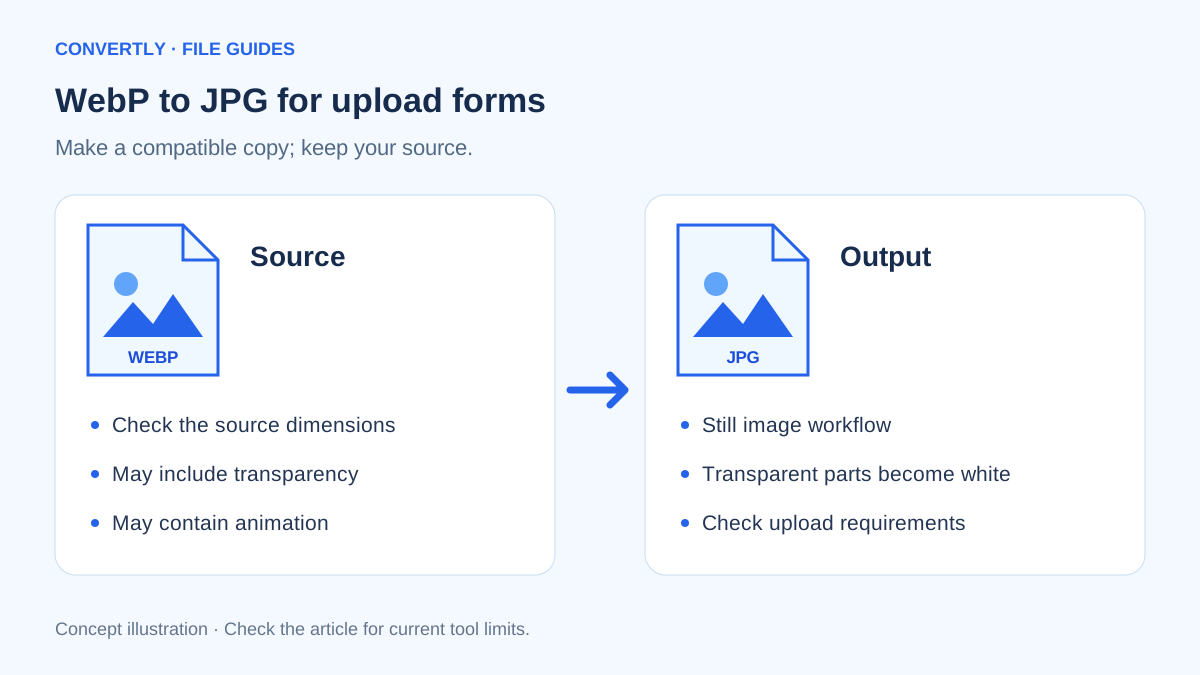
If an upload form rejects a WebP picture but accepts JPG, convert the image rather than changing its extension. Choose JPG as the output, download the new file and reopen it before trying the upload again. This confirms that you have a usable image, not simply a renamed file.
WebP is a valid image format. A rejection often reflects the receiving application's format rules rather than a damaged picture. Preserve your original while making a separate copy for that destination.
Check the upload rules first
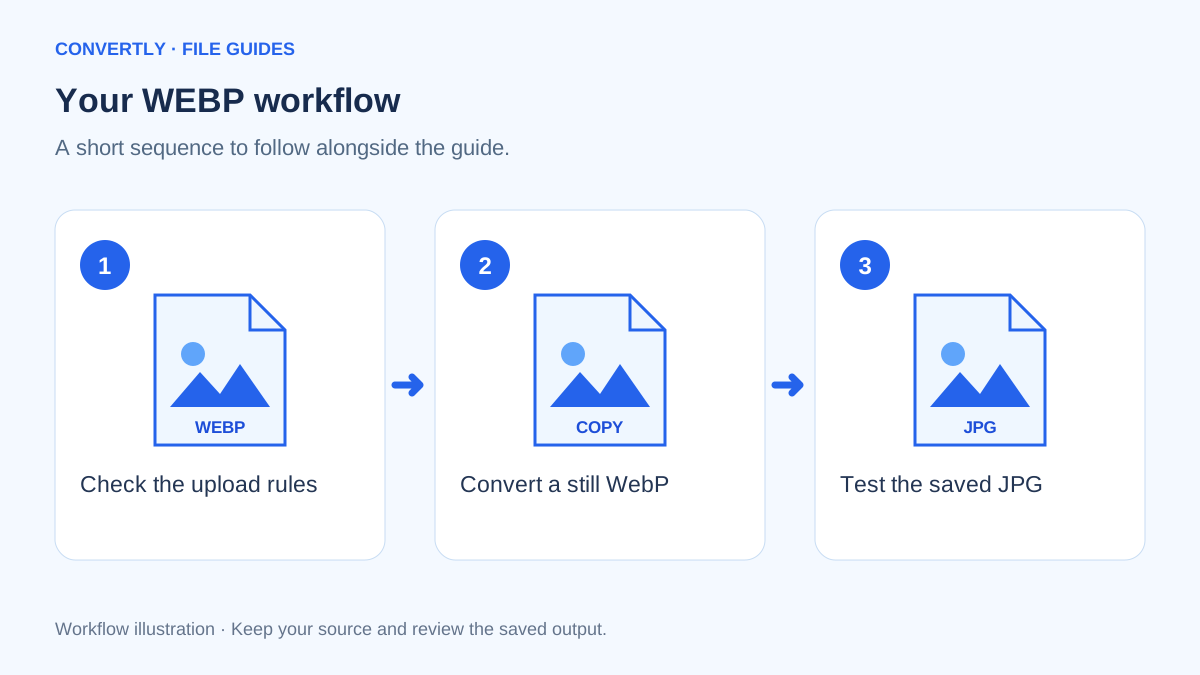
Read the accepted formats, maximum size and dimension requirements. A form might accept JPG but still reject a picture that is too wide. If it requires a minimum width, avoid shrinking below it merely to reduce the file size. Write down all three constraints before you start.
Confirm the downloaded source is an actual image. A saved web page or an access-denied response is not a WebP picture even if its name ends in .webp. Try opening the source in a normal browser tab or image viewer.
Make a JPG copy with Convertly
- Open Convertly and choose WebP to JPG.
- Select a WebP image from your device.
- Check that the output selector shows JPG.
- Open Advanced settings if you need to reduce Maximum width or adjust Image quality.
- Convert the file, then use its Download link.
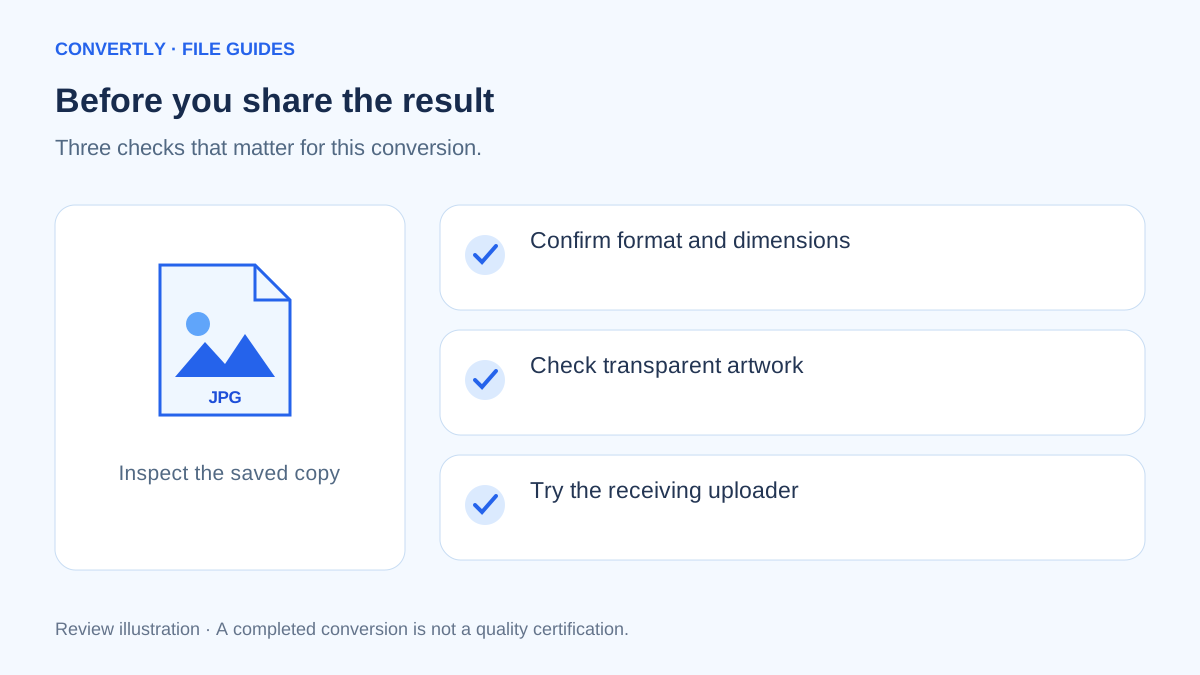
- Open the downloaded JPG and check its dimensions and file size against the form's rules.
Start with the default quality setting and one file. Once the result works, you can apply the same approach to similar images. The current batch limit is 20 files, with a 100 MB limit for each input.
Will transparency or animation survive?
JPG does not store transparent pixels. Convertly places transparent parts on white for JPG output. A white logo with no visible background may therefore seem to disappear. If the destination accepts PNG, use that when a transparent background matters.
Animated WebP needs separate attention. Convertly's image path is designed for still-image output; it does not promise to preserve an animation as multiple frames. If movement is important, keep the original animation or use a tool designed to convert animated images.
Why can a converted JPG look different?
JPG compression may alter fine details. Color handling can also differ between applications. Compare the same picture in the same viewer, at the same zoom level, before drawing a conclusion. Check edges and text rather than relying only on a small thumbnail.
If the image is already heavily compressed, exporting at maximum quality cannot restore missing information. Make one careful conversion from the best original you have. Avoid a chain of WebP-to-JPG-to-WebP exports.
Identify what kind of WebP you have
A picture downloaded from a website may be a small display version rather than the original asset. Check its pixel dimensions before converting it. A thumbnail can be a perfectly valid WebP file, but exporting it as JPG does not turn it into a high-resolution photograph.
Look for movement and transparent areas as well. A short animation and a still illustration may share the same filename extension while needing different treatment. For a still upload, choose a source frame or original still image that represents the content properly. Do not assume a still export will capture the exact frame you wanted from an animation.
Use the receiving form as your final test
Consider a job application portal that accepts only JPG or PNG attachments. Make a conversion copy and check the portal's instructions for orientation, minimum dimensions and byte size. If its preview rotates or crops the image unexpectedly, stop and inspect the downloaded copy in another viewer before submitting the form.
A successful local conversion does not guarantee that an uploader will accept a file. Some services inspect the actual image encoding, not just the extension. Others apply restrictions to filenames or require a specific document category. Follow the error message from the receiving system rather than repeatedly converting the same image with random settings.
When PNG is the more useful alternative
If the form accepts PNG and your picture contains transparent artwork or crisp interface text, compare a PNG export before choosing JPG. The right destination format depends on what must survive. A logo needing see-through edges has a different priority from a photograph that must fit a small upload allowance.
Compare actual files using the same dimensions. If you change format and dimensions simultaneously, you cannot easily tell which adjustment produced the difference. Keep both candidates until you have inspected their edges, file size and appearance in the destination application.
Make your download folder easier to trust
Use a simple naming scheme such as product-front-original.webp and product-front-upload.jpg. Keep the original in a separate folder, especially when your system hides extensions by default. A filename ending in .jpg.webp can be confusing if you see only part of its name.
When processing several images, download and inspect the outputs before clearing the queue. Confirm that each file corresponds to the intended source. Similar thumbnails and automatically numbered downloads can make it surprisingly easy to attach the wrong picture even when every conversion succeeded.
Troubleshoot a file that will not decode
If both the converter and a normal image viewer refuse the WebP, download it again from an authorized source. An interrupted transfer or a saved sign-in page may explain the problem. Avoid sending a private account link through another service just to obtain a different extension.
If the source opens normally but browser conversion fails, try a current browser on a device with more available memory. Large dimensions can be demanding even when the compressed input is relatively small. A local image editor is another option when the browser cannot complete the task. Preserve the failing source so you can compare it with a known-good still WebP.
Common questions
Is WebP always smaller than JPG?
No individual result is guaranteed. The picture, dimensions and encoding settings affect the size. Compare the two files.
Why does the form still reject my JPG?
Check its size, dimensions and filename rules. If an official form specifies additional requirements, follow those rather than assuming the format change is sufficient.
Does Convertly upload the picture to convert it?
The image conversion code processes the selected picture in your browser. Site delivery, optional analytics and contact services are separate; see the Privacy Policy.