 Convert
How Do You Convert JPG to PNG, and Will It Remove the Background?
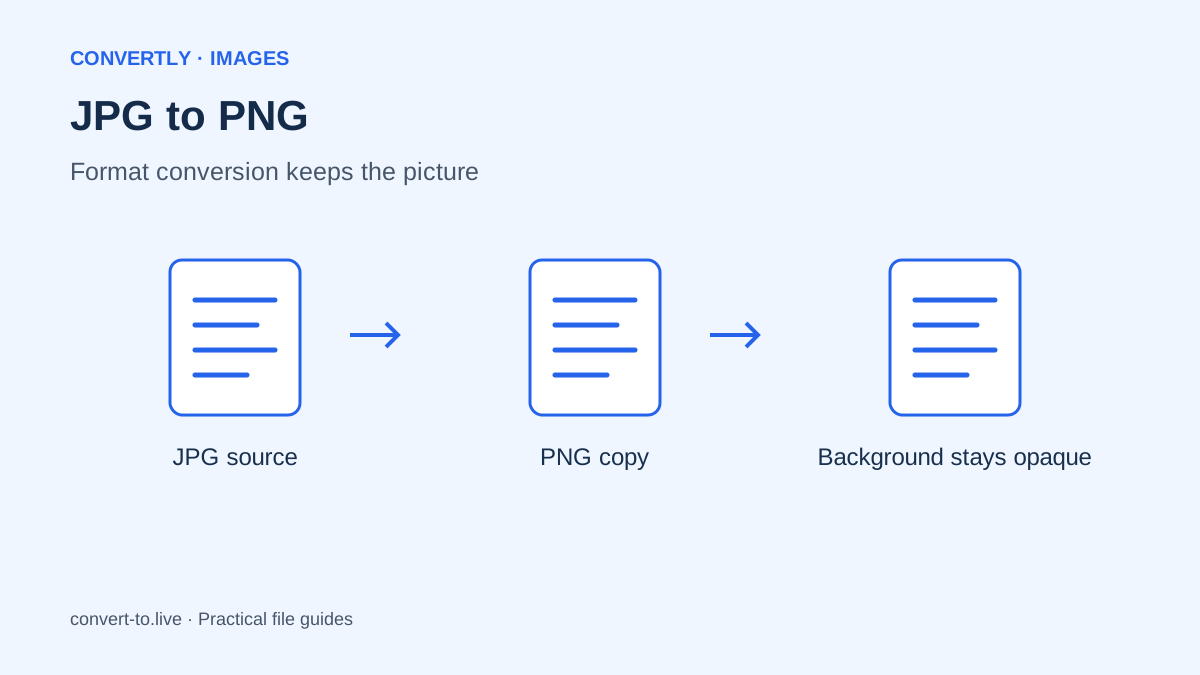
To convert JPG to PNG, open the image in a converter, choose PNG and download the new file. That changes the image format, but it does not remove a white background or repair detail already missing from the JPG. Those are separate editing tasks.
A useful conversion starts with a clear reason. Perhaps an upload form requests PNG, or your next editing step needs that format. This guide explains how to make the change in Convertly and how to tell whether the result actually meets your needs.
What changes when JPG becomes PNG?
JPG and PNG store pictures differently. JPG normally uses lossy compression, while PNG can store image pixels without another lossy compression step. However, converting an existing JPG cannot reverse its previous compression. Blocks around letters, rough edges and blurred textures remain part of the source picture.
Think of the PNG as a new container for the picture you already have. It can be useful for subsequent work, but it is not a restoration process. If you have a cleaner original, export from that instead. A camera original or an editable design file usually gives you more choices than a small image copied from a message.
Does converting JPG to PNG make the background transparent?
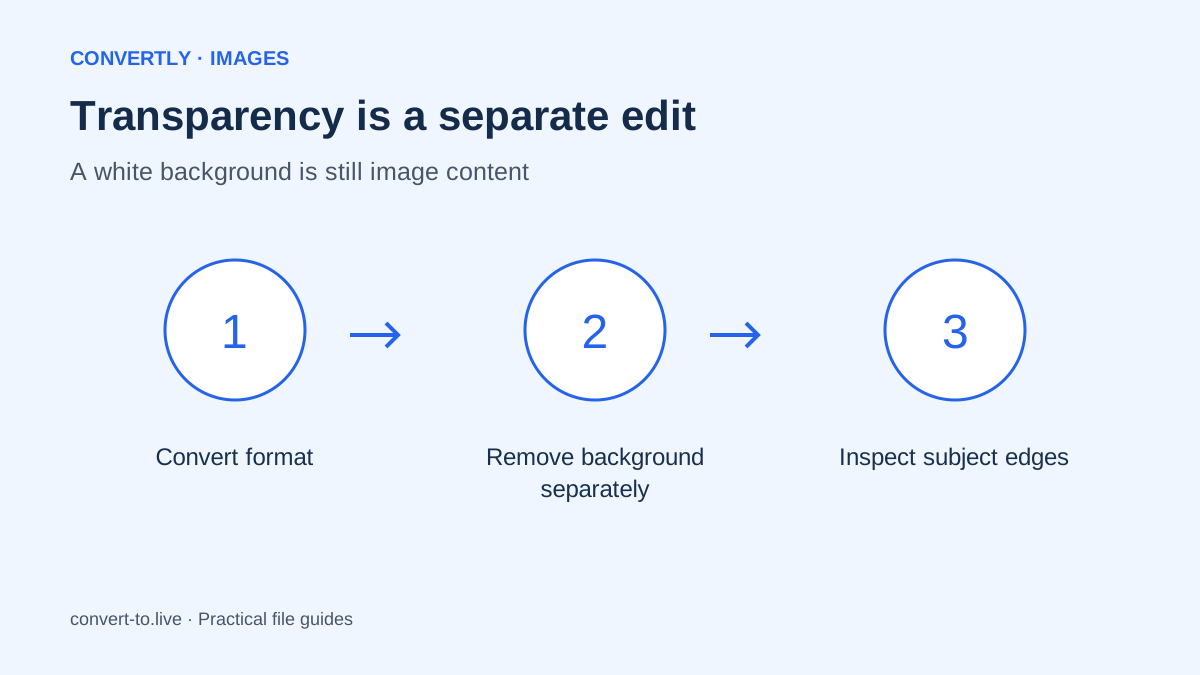
No. PNG supports transparency, but a JPG does not contain an existing transparent background to preserve. White pixels in a JPG are ordinary image content. A format converter keeps them white unless it also includes a separate background removal operation.
Convertly's image converter changes formats; it does not automatically isolate a subject. If your goal is a transparent logo, obtain the original transparent artwork or use an editor to remove the background first. Then export as PNG and inspect the edges against both light and dark backgrounds. This helps reveal pale halos that can disappear against a white preview.
Prepare the source before converting
Make a copy of the JPG and give it a descriptive name. Check the picture at its original size, rather than judging a tiny thumbnail. Look for the dimensions, any visible compression damage and whether important content has already been cropped away.
Read the destination requirements before you export. A website may request PNG while also enforcing a maximum width or file size. Meeting the format requirement alone will not satisfy those other limits. Note each requirement separately, and keep the original available in case your first attempt needs adjustment.
Convert JPG to PNG in Convertly
Open Convertly and choose Image Converter from the tools. Add your JPG through Choose Files or drag it into the browser. In its output menu, select PNG. If you only need a format change, leave the maximum width unset so the picture keeps its existing pixel dimensions.
Press Convert files, wait for the row to show Done and use Download to save the result. Open that downloaded copy from your device. The conversion works locally in your browser, and no account is required. Keep the tab open until you have saved the output; a finished conversion inside a tab is not a permanent backup.
Why can the PNG be much larger?
A photographic JPG is often already compact. Saving the same photograph as PNG can produce a noticeably larger file because the new format uses a different compression approach. A larger result does not prove that the picture contains more detail or looks better.
If the destination accepts JPG, ask whether conversion is necessary at all. If PNG is mandatory, reducing pixel width may help, provided the remaining dimensions still meet the destination's rules. Convertly's maximum width setting preserves proportions and does not enlarge a smaller source. Start each experiment from the original JPG, rather than repeatedly processing your last export.
Choose dimensions deliberately
Suppose a form needs an image no wider than 1200 pixels and your JPG is 2400 pixels wide. Setting a maximum width of 1200 creates a smaller image with its height calculated proportionally. Check small text and fine lines afterward because reducing dimensions removes available pixels.
Do not assume a quality slider will shrink a PNG in the same way as a JPG. PNG export behavior differs, and the most useful change may be its dimensions or the choice of source. If the output remains too large, revisit the destination's accepted formats instead of promising a particular compression percentage.
Check the file you actually downloaded
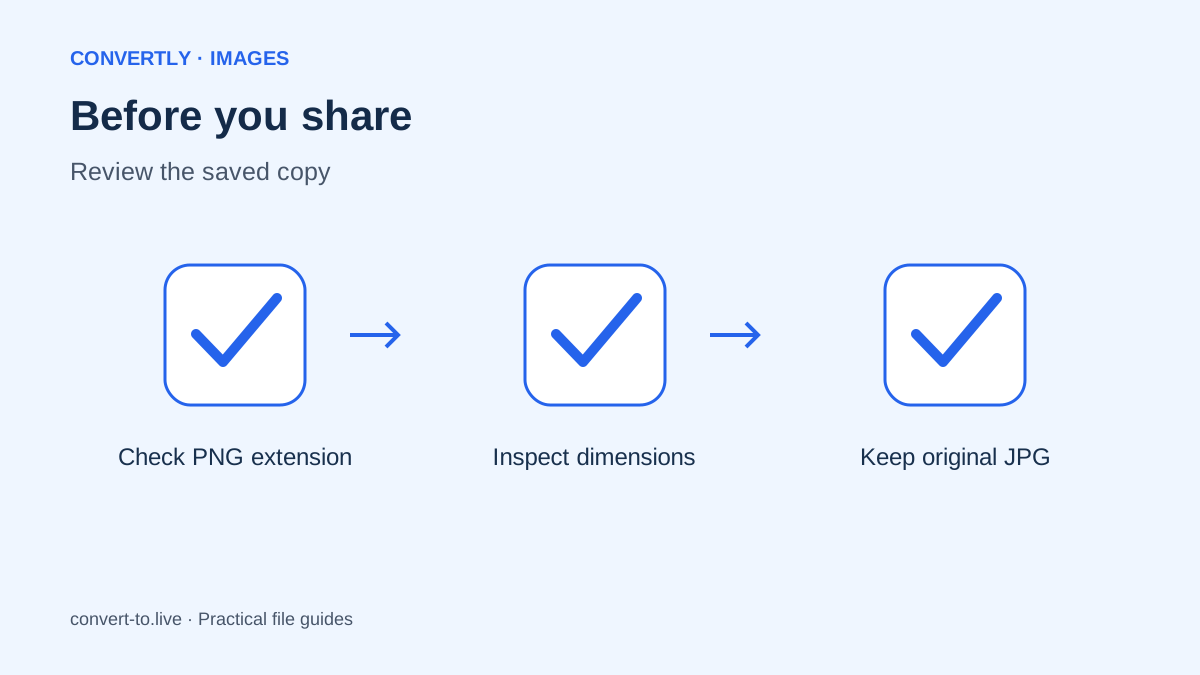
Inspect the filename extension, dimensions and visible contents. Use your file information panel if available, then open the image in an ordinary viewer. Check that the entire subject is present, the orientation is correct and any important text remains readable.
Next, test the file in the intended destination. Some forms display an upload preview that resizes the image, so review that preview as well. If the form rejects the PNG, copy the exact error message and check format, dimensions and file size independently. Repeated conversion without reading the error rarely solves a specific requirement.
Keep exports organized
For several related pictures, use clear names such as product-front.png and product-side.png. Avoid a folder full of files named final-final-new. Saving source and export copies in separate folders makes it easier to return to the best available image.
A PNG conversion also should not be treated as a guaranteed metadata scrub. If privacy-sensitive metadata matters, inspect the exported file with a suitable metadata tool and follow your organization's handling rules. Local processing protects the conversion workflow from a conversion upload, but sharing the finished image still shares its visible contents with the recipient.
Common questions
Can I rename .jpg to .png instead?
No. Renaming only changes the label in the filename. It does not re-encode the picture. A receiving application may notice the mismatch and reject it. Use a real conversion and keep a recognizable output name.
Will PNG make my blurry JPG sharp?
No. The new format cannot recreate missing detail. Find a larger original, retake the picture or use a suitable editing workflow. Inspect any edited result carefully instead of assuming a sharper-looking preview is accurate.
Should every image become PNG?
No. Choose the format for its purpose. PNG is useful when required or when preserving suitable artwork, while JPG often remains practical for photographs. Keep the original, export once and check the result before sharing.