 Convert
How Do You Convert MOV to MP4 and Keep It Playable?
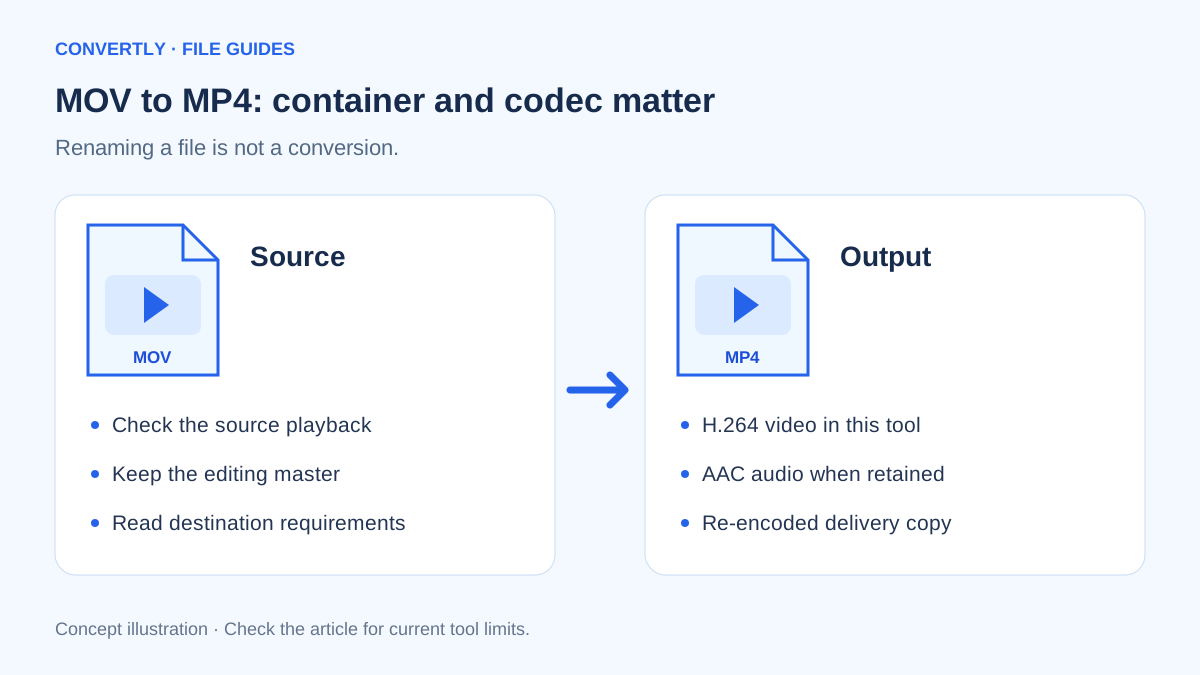
To make a MOV recording easier to share, export an MP4 copy using a video converter. Then test the copy in the application or device that needs it. The extension alone is not enough: the video and audio encodings inside the file also affect compatibility.
MOV and MP4 are containers. Think of the container as packaging around the streams. Changing the filename does not repack those streams or change how they are encoded, so renaming .mov to .mp4 is not a reliable conversion.
Convert a MOV recording in Convertly
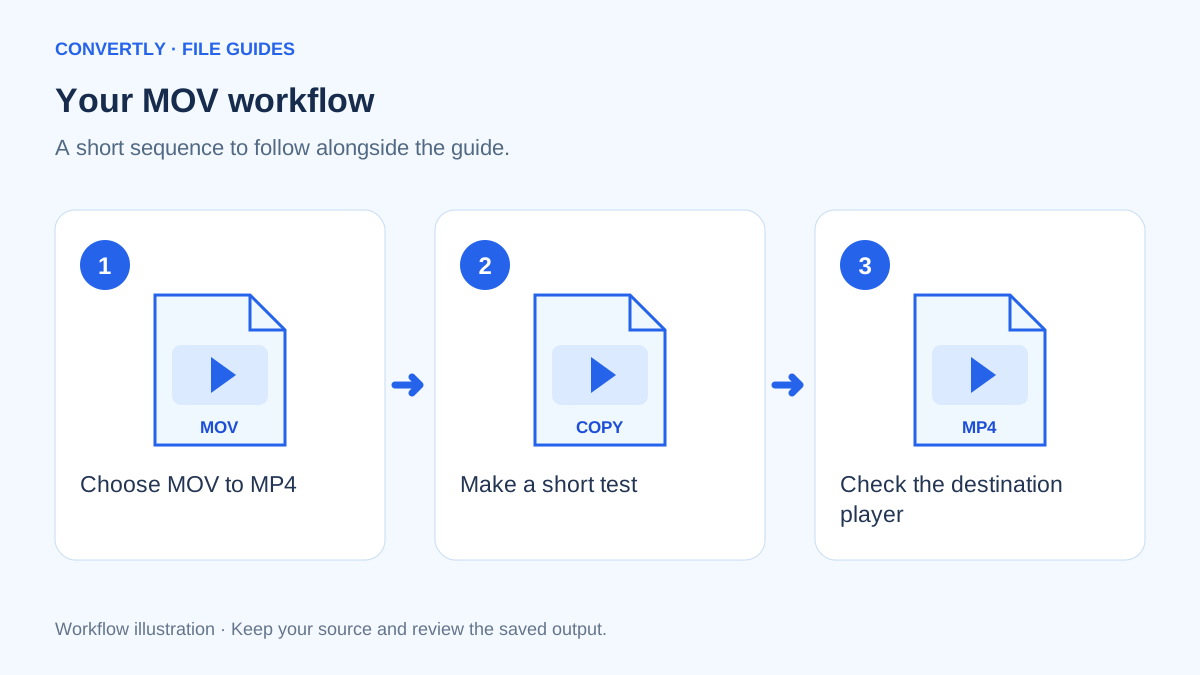
- Choose MOV to MP4 from the video tools.
- Add the MOV recording from your device and confirm that MP4 is selected.
- For a first test, leave Start at 0 and Duration blank to process the full recording.
- Keep Remove video audio unchecked if you want the soundtrack.
- Convert the file and leave the page open until the download is ready.
- Download the MP4 and play it on the destination device or application.
If you only need a short section, enter a Start value and a Duration in seconds before converting. A short test is also useful when you are checking whether a particular recording works with the browser engine.
Is the conversion lossless?
Convertly's current MP4 output path re-encodes video as H.264 and audio as AAC. It is not a stream-copy or “rewrap only” mode, so lossless output should not be promised. Retain the MOV as your source if you might edit the recording again.
The image-quality and Maximum width controls apply to still images, not video. The current interface does not expose a video resolution selector or quality slider. Changing those image controls will not give you a different MP4 encoding profile.
When is a container-only change enough?
Some recordings already contain streams suitable for the intended MP4 destination. A desktop tool with an explicit stream-copy function may be able to repackage those streams without re-encoding. That is a different workflow from this converter's current MP4 path.
Stream copying is not a universal answer. If the recipient cannot decode the video or audio codec, placing it in another container may leave the same playback problem. The destination's supported formats decide which approach is useful.
What should you inspect after conversion?
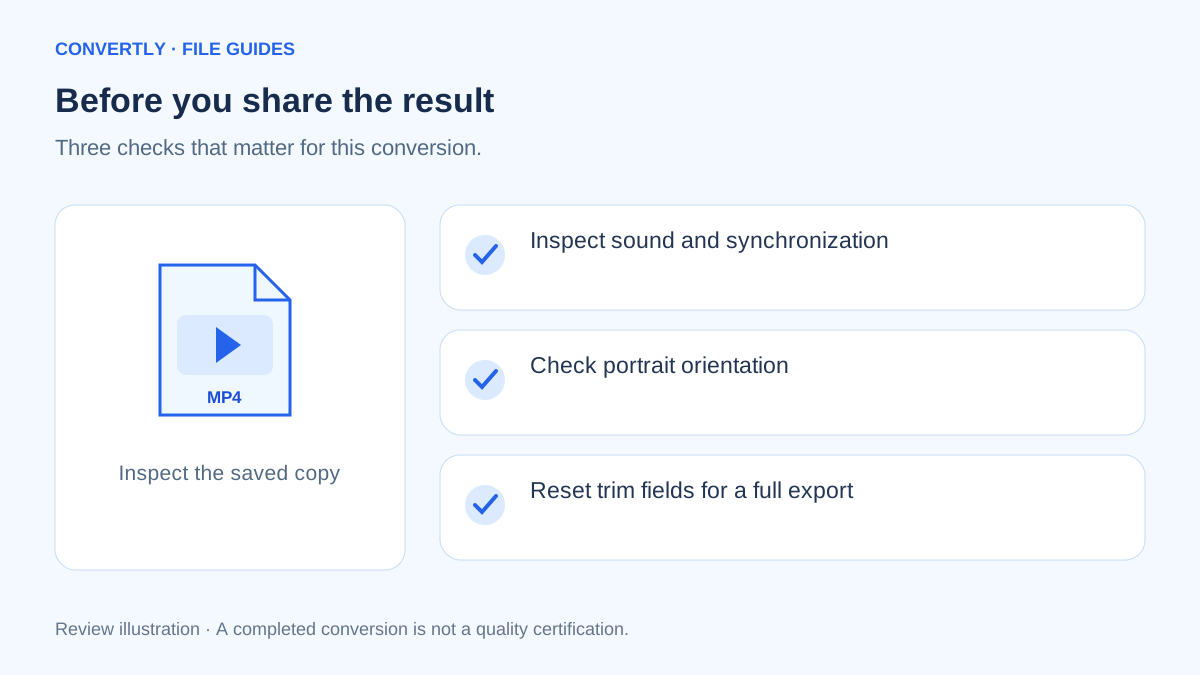
Play the beginning, middle and end. Confirm that sound remains in sync with the picture and that portrait footage appears the right way up. Compare duration with the source, allowing for any deliberate trim settings.
Check color and brightness too, especially with recordings made using advanced camera modes. Specialized color, HDR, metadata or subtitle behavior is not guaranteed in this browser workflow. A file playing on your laptop does not prove every messaging app or television will accept it.
Start with the destination, not the extension
A messaging app, a presentation system and a video editor may each accept different combinations of containers, codecs and dimensions. Check the destination's current requirements before spending time on a long conversion. An MP4 that plays in one application may still need a different export for another.
When possible, test a short representative clip through the complete delivery path. Download the result, open it in the destination and check both picture and sound. This is more useful than only verifying that the file has an .mp4 extension in your download folder.
Make a short compatibility test
Use the Start and Duration fields to choose a section containing speech, motion and a typical lighting condition. A clip of an empty room may not reveal synchronization problems or difficult movement that occurs later in the recording.
Once the test works, return to the original settings for the complete export. Reset Start to 0 and clear Duration when you want the whole video. Otherwise, it is easy to finish a successful short test and accidentally create another excerpt while thinking you are converting the full recording.
Understand the work your device performs
Re-encoding asks the browser to decode input frames and encode a new stream. The amount of work depends on the recording as well as its file size. A detailed, high-resolution clip may be demanding even when its compressed input is below the site's 100 MB limit.
Keep the page open and avoid starting many large jobs at once. A laptop with more available memory may complete a conversion that a phone cannot. The current interface shows progress, but it does not promise a fixed completion time for every codec, recording or device.
Check the soundtrack and trim boundaries
If the output is silent, inspect the Remove video audio setting and confirm that the original actually contains sound. If you selected a short duration, play the boundary around the final word or action. The correct duration number does not automatically mean the chosen cut feels natural.
For recordings with multiple audio tracks or subtitles, do not assume all of them are retained. The current interface does not provide detailed stream-selection controls. Use a video application with explicit track selection when language versions, subtitles or other stream-level requirements are important.
Keep an editing master and a delivery copy
Your original MOV can be the editing master, while the MP4 is the delivery copy for a particular recipient. Store them with distinct names so that a later project does not start from an already re-encoded output by accident.
When a recipient reports a playback problem, collect the application name and the exact symptom: no picture, no sound, incorrect orientation or a rejected upload. Those are different clues. Compare the source and output before converting again, and change the workflow to address the actual limitation rather than simply producing another file with the same settings.
Common questions
Why is the MP4 not smaller?
File size depends largely on the encoded streams and duration. A format change is not a guaranteed compression target.
Why does my MOV fail to open?
It may contain an unsupported codec or be incomplete. Confirm that the original plays, try a short known-good clip and check the 100 MB input limit. Browser memory can also constrain conversion.
Do I need an account?
No account is required for the local conversion tools. Keep the page open during processing and download the result before leaving it.