 Convert
How Do You Combine Several Images into One PDF in the Right Order?
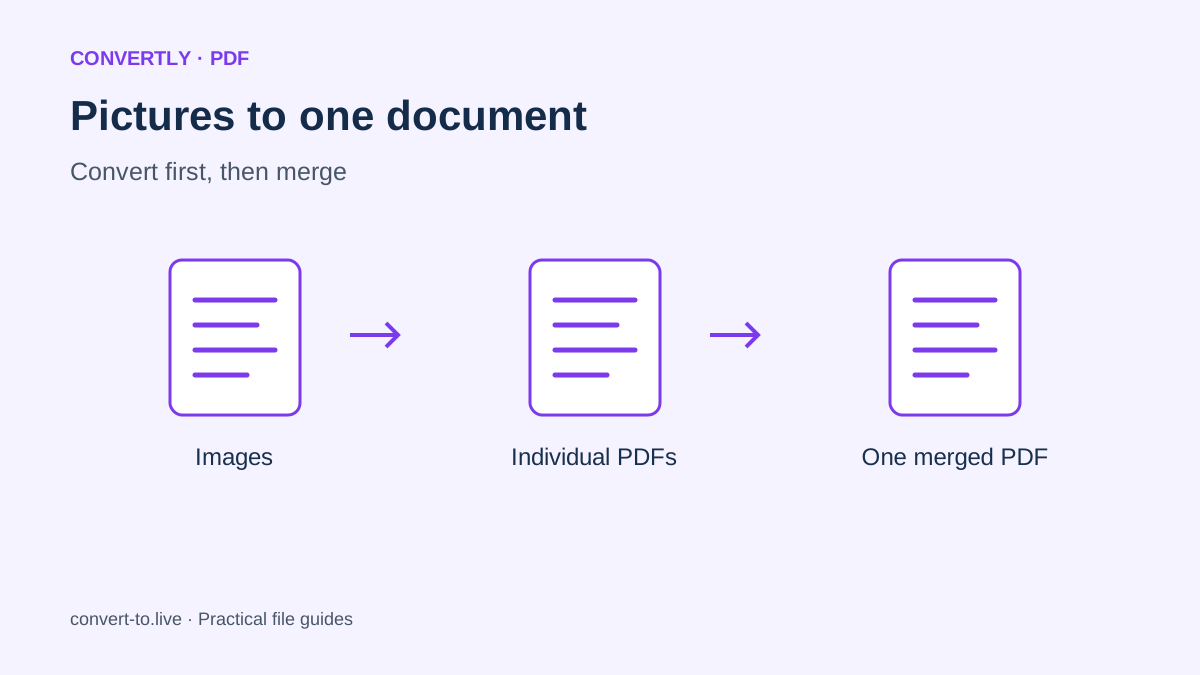
To combine several images into one PDF, convert the pictures into PDF pages and then merge those pages in the order you need. In Convertly, this currently takes two stages: Image to PDF creates an individual PDF for each picture, and Merge PDF combines the saved PDFs.
That workflow suits a group of receipts, a short photo report or scanned pages that need to travel as one attachment. The important work is organizing and reviewing the pages. A single PDF is convenient only when the recipient can read it and follow the sequence.
Prepare the pictures before you start
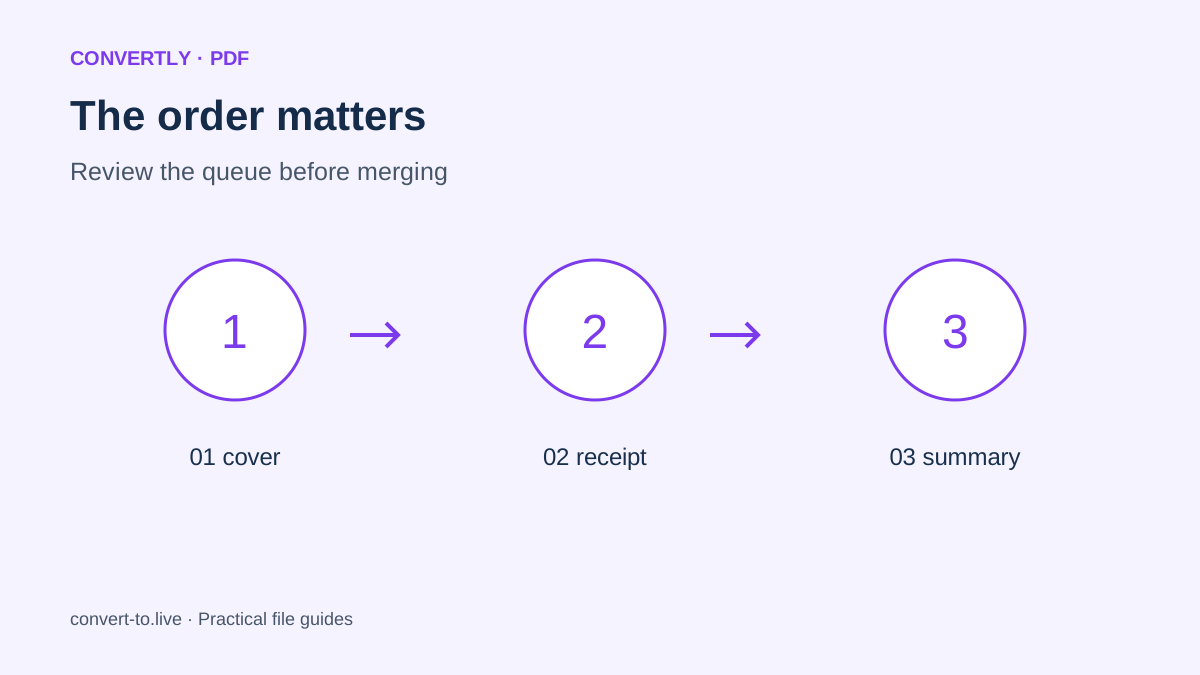
Put the images in a dedicated folder and remove unrelated files. Give them numbered names such as 01-cover, 02-receipt and 03-summary. Numbers make the intended order visible, but still check the queue because a file picker may not add files in the order you expect.
Open each picture and confirm that it is upright, complete and readable. If a page photo includes a large area of desk, crop it in an image editor first. A format conversion cannot correct a missing corner or restore text that was out of focus when the photograph was taken.
Choose images that will remain legible
A document page needs enough detail for its smallest important writing. A thumbnail that looks acceptable on a phone may produce an unreadable page when enlarged. Check dates, totals, signatures and any reference numbers that the recipient will need.
For a screenshot, remove unnecessary surrounding interface elements before sharing if you can do so without changing the meaning. For a photograph of paper, aim for even lighting and a flat page. Keep an unedited source separately. That way you can return to it if a crop was too tight or the exported page needs a different size.
Stage one: convert images to individual PDFs
Open Convertly and select Image to PDF. Add your prepared images and confirm PDF is the output format in each row. Review Advanced settings before starting. A maximum width reduces the picture proportionally, so leave it unset unless you have a reason to reduce the source dimensions.
Press Convert files and download every completed PDF. Each image becomes its own PDF in this tool; it does not automatically create a multipage document from the entire queue. Save all the PDFs in one working folder, then verify that their count matches the number of pictures you intended to include.
Understand the resulting page sizes
Convertly creates a page from each image's pixel dimensions. It does not currently offer an A4 or Letter page template in this workflow. Pictures with different dimensions or proportions can therefore create pages of different sizes, even after you merge them into one document.
That may be fine for a digital receipt bundle. If a destination specifically requires uniform A4 pages, prepare the layout in a document or page-layout editor instead. Do not describe a mixed-size output as print-ready without checking it. Page shape, physical print size and image resolution are related decisions, but they are not interchangeable settings.
Stage two: merge the saved PDFs
Return to Convertly and choose Merge PDF. Add the individual PDFs, then read the displayed queue from top to bottom. That order becomes the document order. If it is wrong, remove the affected files and add them again in the intended sequence before merging.
Press Merge PDFs and download the finished document. Use a descriptive name such as november-receipts.pdf instead of leaving several similarly named downloads together. Keep the individual PDFs until you have reviewed the merged file, because they provide a quick way to rebuild it if one page was missed or placed incorrectly.
Check backgrounds and image quality
The Image to PDF process places the image on a white background and embeds a JPG representation. Transparent areas therefore appear white, and the image export can introduce lossy compression. For ordinary document photos this may be acceptable, but inspect fine text and diagrams rather than assuming every source is preserved pixel for pixel.
If your original artwork requires transparency or exact color reproduction, choose a publishing workflow designed for that requirement. A PDF attachment for reading is a different task from preparing production artwork. Keep the original images available, and do not treat the PDF as your only archival copy when fidelity is important.
Review the complete document
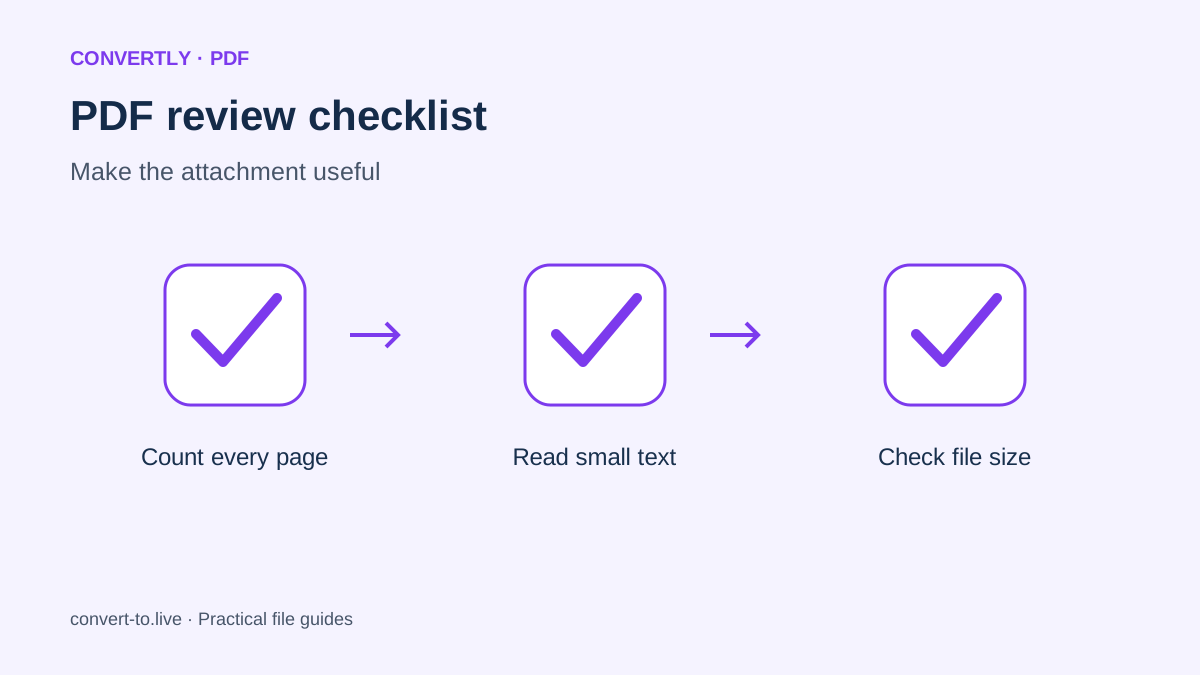
Open the downloaded merged PDF in a normal viewer. Count the pages, check the first and last pages and scroll through every page between them. Look for duplicates, sideways pictures, blank areas and missing content. Review the small writing at a useful zoom level.
Then check the file size against the recipient's limit. Combining images does not guarantee a smaller file. If it is too large, revisit oversized source pictures and make reasonable dimension or quality adjustments before repeating the two stages. Avoid shrinking every page so aggressively that the information the recipient needs becomes difficult to read.
Remember that image pages are not searchable text
A PDF made from pictures normally remains pictures inside a PDF. This conversion does not perform optical character recognition. You should not expect to search for a receipt number or copy a paragraph merely because the filename now ends in PDF.
If searchable text or accessible reading order is required, use a dedicated OCR and document accessibility workflow. Verify the recognized text against the source, particularly for names and numbers. A visually tidy PDF may still need additional work before it is suitable for someone using assistive technology or a system that extracts document text automatically.
Common questions
Can I combine images without creating an account?
Yes. Convertly's image and PDF tools do not require registration. Conversion runs in your browser. Download the results before closing the tab, and remember that uploading the finished document to another service is a separate sharing action.
What limits should I keep in mind?
The site accepts up to twenty files per batch and one hundred megabytes per file, subject to available browser memory. For a larger project, work in manageable groups and check each intermediate output before the final merge.
What if only one page is sideways?
Fix that source before conversion or use a PDF editor that can rotate selected pages. Convertly's current Rotate PDF tool turns every page by ninety degrees, so it is not a selective page correction tool for a mixed-orientation document.