 Convert
How to Trim Audio Using Start Time and Duration
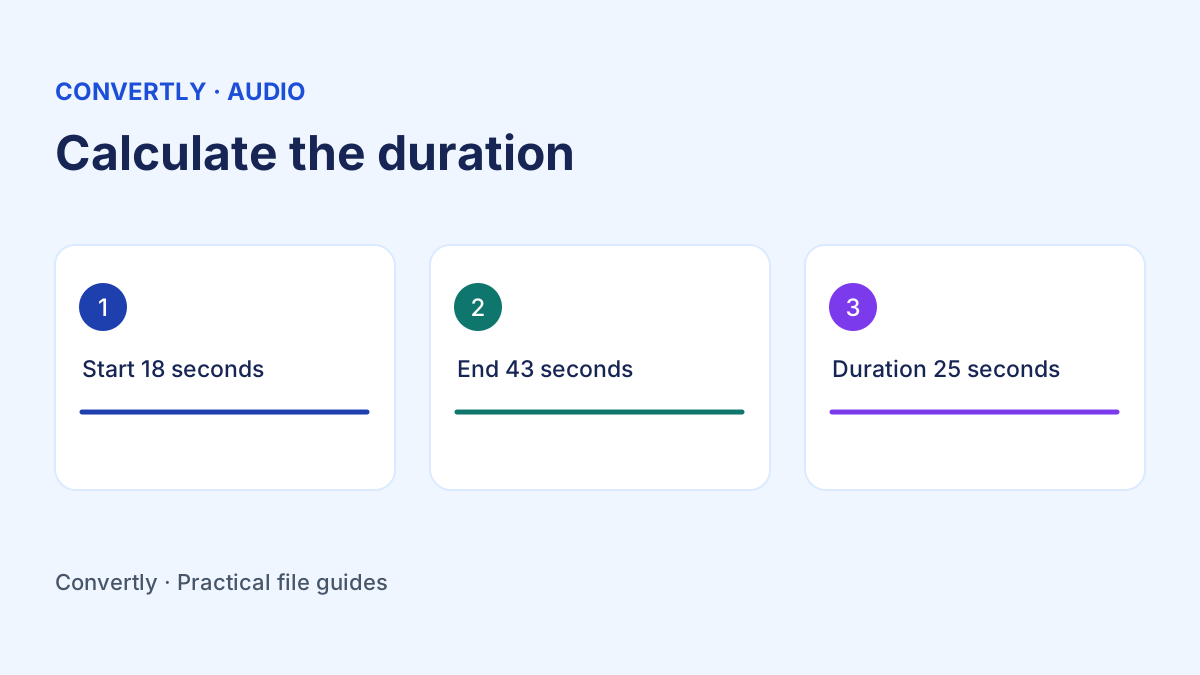
To trim an audio file, decide where the excerpt should start and how long it should run. Convertly takes those two values in seconds. If the section you want begins at 18 seconds and ends at 43 seconds, enter 18 as the start and 25 as the duration. Save a separate copy and listen to both ends before sending it.
Decide what belongs in the excerpt
A good excerpt makes sense on its own. In a voice recording, a sentence that begins with “that” or “they” may need an earlier sentence to identify the subject. In music, starting halfway through a note can sound abrupt. Listen once for meaning, then listen again for a clean point where the sound can begin and end.
Use a player that displays the current timestamp. Pause around the point you want to use and note the time. If a player displays minutes and seconds, convert the timestamp to total seconds before entering it. One minute and fifteen seconds is 75 seconds. When the start and end are both written this way, subtract the start from the end to get the duration.
Trim the recording in Convertly
Open Convertly and choose Trim Video & Audio. Add your audio file from your device, then choose the output format beside the file. Open Advanced settings if you need to see the timing fields. Enter the start in seconds and the duration in seconds. A start of zero begins at the start of the file. Leaving duration unset keeps the remaining audio from the selected start.
Choose Convert files and download the result once the tool finishes. For the first media export, the browser may need time to load the conversion engine. Keep the tab open and work with a small excerpt if you are checking an unfamiliar file. Use the result's download link so you review the saved export rather than replaying the original in another tab.
Choose the format for the next step
MP3 is a practical option for sharing a voice clip when the recipient accepts it. Convertly uses a 192 kilobit per second encoding setting for MP3. WAV is useful when a later editing workflow wants a conventional uncompressed audio copy. Its file size may be larger, even if the source was an MP3. Reencoding as WAV cannot restore detail that a previous lossy encoding discarded.
If you are choosing between the two, decide whether the next step is listening or editing. A collaborator who wants to edit the excerpt may ask for WAV. A colleague who wants a small file to listen to may prefer MP3. A platform with a particular format or bitrate requirement should drive the choice. Compare the saved output with that requirement before attaching or uploading it.
Avoid clipping words at the start or end
Leave enough time to catch the first consonant. On a recording with speech, a small margin before the sentence can sound more natural than a cut that starts right on the first vowel. At the end, leave enough room for the word to finish. A sudden cut can make an otherwise clear recording hard to understand.
Use headphones when you check the excerpt. Listen for breaths, plosives and background clicks near the boundaries. If the last syllable sounds cut off, add a little time to the duration and export again from the original. If the first sound is clipped, move the start slightly earlier and recalculate the duration if the ending needs to stay the same.
Keep the rest of the recording when you need it
Trimming produces a new file from the chosen segment. If you only need to remove a long introduction, enter the start you want and leave duration unset. The output then runs through the remaining source. If you need to remove silence from both ends, enter a start and a duration that stops before the unwanted tail.
Removing a section in the middle is a different editing task. One start and one duration describe one continuous excerpt. If you want the first and third parts with the second part removed, use an audio editor that can cut and join sections. For two independent excerpts, make two exports from the original and give each file a name that describes its contents.
Check duration and sound after export
Open the downloaded file and look at its displayed duration. Some players round the number they show. Listen through the end instead of treating the displayed timestamp as proof that the cut is right. The exact sound at the boundaries is the important result. If you need frame accurate edits, fades or a waveform to choose the cut, use an editor designed for that workflow.
When sending a recorded explanation, play the clip once without referring to the source. Ask whether the opening identifies the topic and the ending feels complete. For music, check whether the opening and ending feel intentional. If the excerpt will be used in a larger production, place it in the project to make sure the timing works next to the material around it.
What if the conversion fails?
Check that the source opens and plays in your normal media player. A filename extension describes the expected container, while the codec inside determines whether an application can decode the sound. A damaged or unsupported recording may need a new export from the original recording app. A short test file from a known source can help distinguish an issue with one file from a browser issue.
Check the size of the file too. Convertly accepts files up to 100 MB each. The browser still needs enough memory to decode the file and encode the excerpt. For a larger recording, use a local editor that can read the full source or create a smaller source segment in your recording app. Do not replace the only copy of the recording when preparing a test. Keep the original somewhere you can find it.
Make the saved excerpt easy to identify
Use a name that describes the excerpt, such as interview-introduction.mp3 or rehearsal-chorus.wav. If you need to document where the clip came from, include the source name and timestamps in a note. That helps a collaborator reproduce the cut and makes it easier to revise the excerpt later. Listen to the file you are about to send and check its name and format. A correctly trimmed recording should be understandable from the first sound to the last, with just enough context for the person receiving it.