 Convert
How to Create a ZIP File From Multiple Files in Your Browser
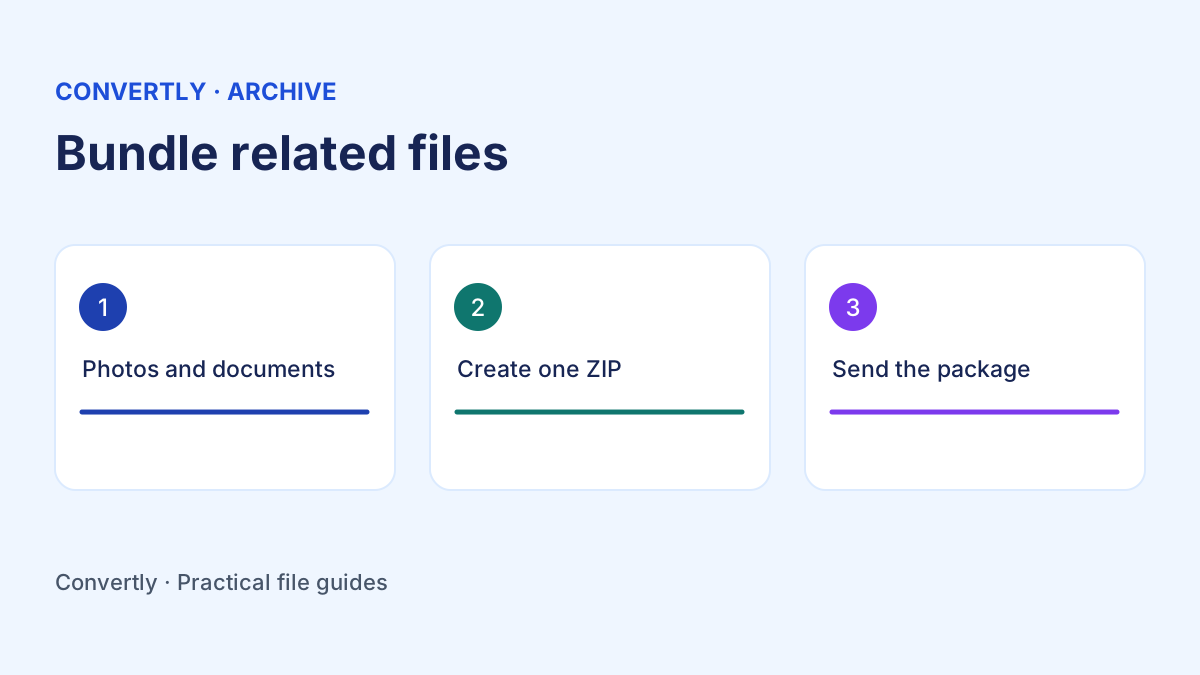
A ZIP lets you send several files as one attachment. Add the files to Convertly's Create ZIP tool, create the archive and download it. Then open or extract the ZIP and check its contents before sharing. The files inside retain their formats, so a PDF stays a PDF and a JPG stays a JPG when the recipient extracts them.
When does a ZIP make sense?
A ZIP is useful when several files belong together. You might send a set of product photos, the handoff for a small design project or a batch of documents to a colleague. A single archive makes it easier to track whether the whole set arrived. It can also help when an upload form accepts only one attachment and lists ZIP as an allowed format.
Read the destination's requirements before packaging anything. If a form asks for one PDF, an archive of individual PDFs usually will not meet that request. A PDF merge creates a document that can be read from beginning to end. A ZIP packages separate files for extraction. The right choice depends on how the recipient needs to use the contents.
Prepare the files before you package them
Make a folder on your device with the files you intend to send. Open the files and confirm that you have selected the correct versions. Look for duplicates, drafts or items that belong to another project. Rename ambiguous files before adding them so the recipient can tell which item is the final version.
Use names that work without the folder context. For example, front-view.jpg and side-view.jpg are clearer than two unrelated files called image.jpg. For a handoff with a reading order, names such as overview.pdf and specifications.pdf help the recipient find the right document. Numbered names can be useful when the order is important, but clear descriptions still help when a file is opened on its own.
Make the ZIP in Convertly
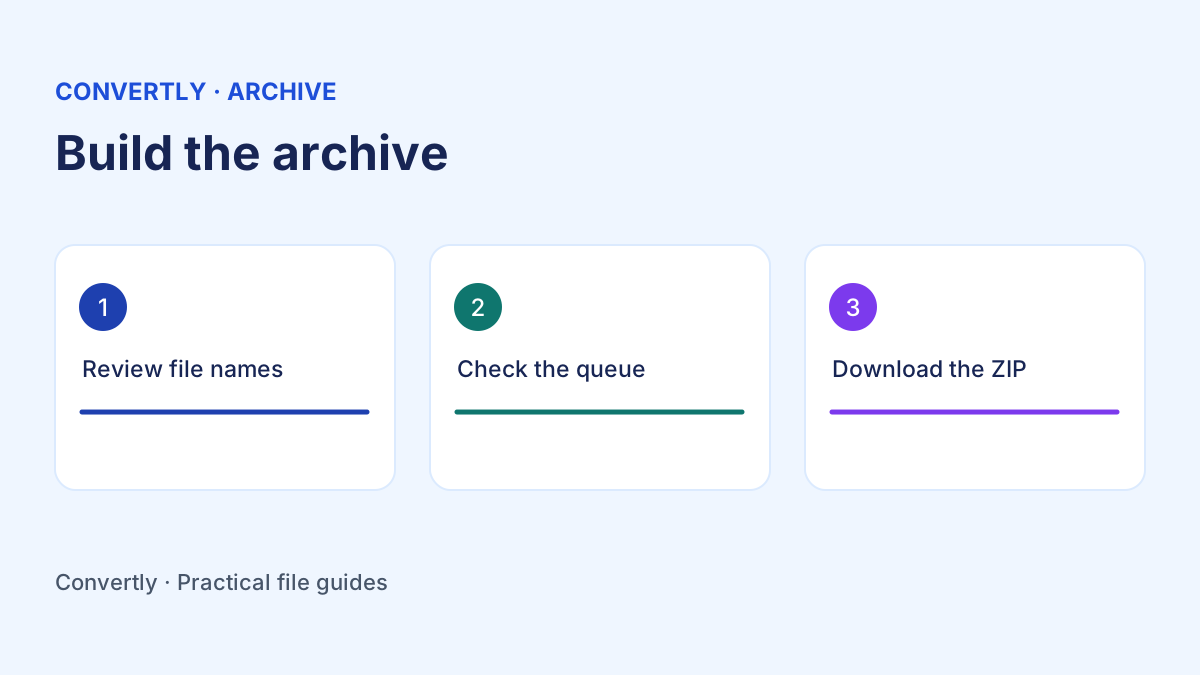
Open Convertly and select Create ZIP under the tools. Add the files you want to include. Review the queue to confirm you have the correct number of files. The site accepts up to twenty files in a batch and caps each general input at one hundred megabytes. Smaller batches are easier to review and may be more practical on devices with limited memory.
Click Create ZIP and wait for the download link. The archive is called converted-files.zip by default. The tool adds a numeric prefix to each entry, which helps keep separately selected files with the same base name distinct. Download the result and rename the archive to something that describes the whole set. The name of the archive can change without changing the entries inside it.
Does ZIP make every file much smaller?
ZIP can compress some data effectively. Plain text and files with repeating patterns may shrink noticeably. Formats that already use compression, such as many JPGs, MP4s and PDFs, often have less room to shrink. A set of photos may become easier to send as one item while remaining close to the total size of the original files.
If you need to fit under a size limit, measure the finished archive before sharing. Consider reducing oversized images or exporting smaller delivery versions of videos first, as long as the destination permits that change. Keep source files separately so the smaller delivery set does not replace your masters. A ZIP is a useful packaging step even when its compression benefit is small.
How to verify that the archive opens
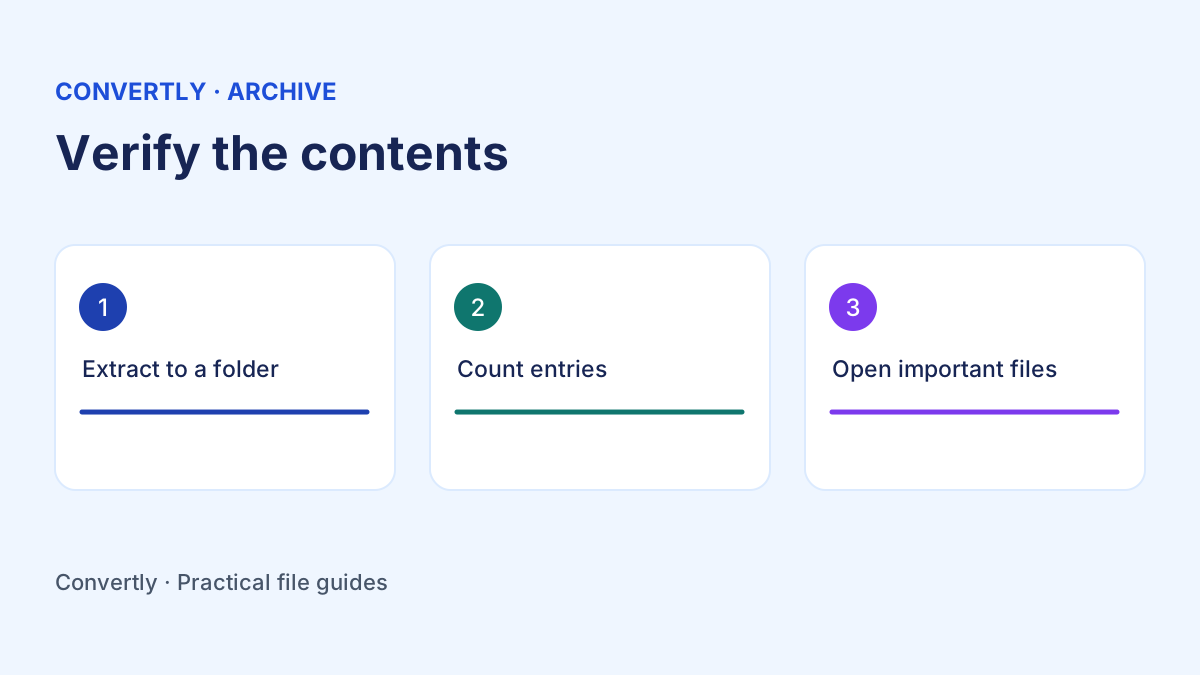
Open the ZIP with the archive viewer on your device. Compare the list of entries with the original queue. If the viewer offers an extract option, extract into a new folder so you can inspect the result without overwriting the originals. Check the count and open a few representative items, especially the files the recipient needs first.
For a project with important deliverables, open each extracted file. Check that a document loads and has the expected page count, a photo appears in the right orientation and any audio or video plays. Keep the originals until you have finished that review. Seeing the archive filename in your downloads folder tells you that the archive was saved. Extracting and opening the contents tells you that the package is usable.
Can you include files of different types?
Yes. A ZIP can contain photos, documents, audio and other files in the same archive. That can be convenient when the files are all part of the same task. Give the archive a meaningful name and group related items together. A short readme that lists the contents can be helpful when there are several deliverables or a required opening order.
If the recipient expects a folder hierarchy, create the archive with a tool that explicitly packages folders. Convertly's Create ZIP workflow takes the selected files and writes entries into one archive. It adds numbered prefixes rather than recreating an existing tree of folders. Check the extracted layout before sending it to a workflow that depends on exact names or directory paths.
What if the recipient cannot open it?
Ask what the recipient sees when they try to open the archive. If it appears damaged, compare the received file size with the size on your device. An incomplete transfer can leave a file with the right name and missing bytes. Try sharing a freshly verified copy through an approved channel that accepts ZIP files.
Some email systems block archives or certain kinds of files inside them. When a destination has that rule, follow its accepted delivery method. Splitting a large package into smaller, clearly named groups can help with a size limit if the recipient can accept several archives. For a one attachment limit, ask which materials actually need to be included before sending an oversized package again.
Review what you are sharing
A standard ZIP made by this tool is a package without password protection. The recipient can extract the contents with a compatible archive utility. If the files contain sensitive information, follow the sharing rules that apply to those files and use a delivery method approved for them. Before you send, confirm the archive name, file size and contents. A final look at the extracted files is especially useful when you prepared several versions and want to send only the approved set. The goal is to give the recipient a single package they can open and use without asking which files belong together.