 Convert
How to Convert MP4 to GIF and Keep the Loop Small
Convert an MP4 to GIF when you need a short, silent animation that can be shared as an image. Start with the few seconds that show the action. A focused loop of a button press or a product gesture is easier to understand and often much smaller than a GIF made from an entire video.
When should you use a GIF?
A GIF can work well in a support article, a quick demonstration or a message that accepts image attachments. The format is convenient when viewers need to see one action repeat. It has no audio track, so instructions that depend on spoken words or sound cues need captions, an accompanying explanation or a video export.
If the recipient can play MP4 and the footage lasts more than a few seconds, compare the MP4 file with the GIF. Video codecs are generally better suited to storing long motion sequences. A long GIF may be heavier than the original MP4. A loop is most useful when its visual behavior matters more than preserving every detail of the video.
Find the right start and end
Watch the source once and write down the instant when the useful action begins. Then identify the last moment someone needs to see. For a cursor demonstration, this might be the second before the pointer moves through the second after the menu opens. Include enough context to understand what changed.
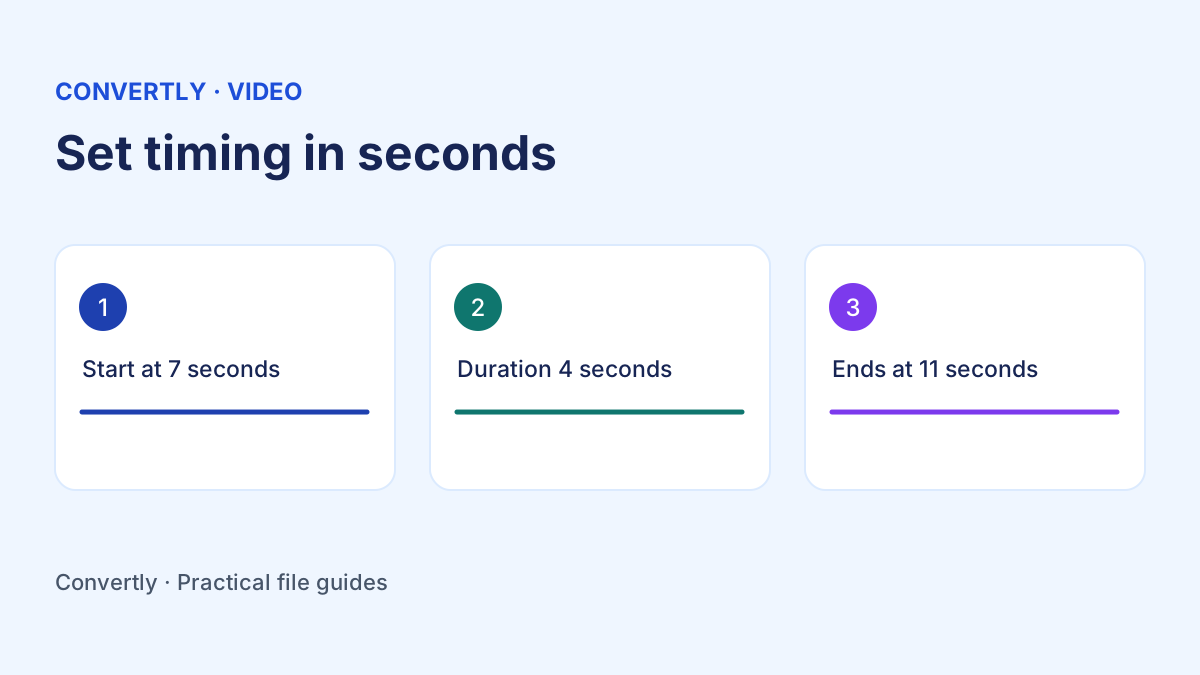
For example, if the action starts at 7 seconds and finishes at 11 seconds, enter a start of 7 seconds and a duration of 4 seconds. Duration is the length of the clip. Entering 11 as the duration would capture up to 11 seconds after the start and include extra material. Preview the result and adjust if the first or last moment is missing.
Convert MP4 to GIF with Convertly
Open Convertly, select Video to GIF and add the MP4 from your device. Confirm GIF as the output. Open Advanced settings and set the start and duration if you are taking an excerpt. Leave the start at zero if the clip should begin at the beginning. A blank duration keeps the remaining footage, so specify a short duration for a compact loop.
Choose Convert files, keep the tab open while it processes and download the finished GIF. Open the downloaded file in a browser or a viewer that plays GIF animation. A preview that shows only the first frame may belong to a viewer that displays GIFs as still images. Test the actual file somewhere that supports playback before converting it again.
How does the converter choose size and frame rate?
Convertly currently renders GIF output at 12 frames per second and 480 pixels wide, with proportional height. The video can therefore look less smooth than the original if it was recorded at a higher frame rate. At 12 frames per second a three second excerpt contains roughly 36 frames, and a ten second excerpt contains roughly 120. The exact count can vary with timing and encoding.
The built in GIF workflow uses those settings automatically. If you need an exact different width or a different frame rate, use a GIF encoder that exposes those controls. For a file size target in Convertly, start by shortening the duration. Reducing the number of frames is often enough for a demonstration where only one small action needs to be shown.
Why do gradients and colors look different?
GIF represents images with a limited color palette. Footage with many colors, fine gradients or shifting light can show bands or a rough texture after conversion. Small logos, plain backgrounds and simple interface animations tend to tolerate the palette better than a sunset or an action scene with rapidly changing color.
If the result looks muddy, try a different excerpt that has a stable background and less movement. For a product demonstration, a screen recording with a steady crop and clear labels may give a cleaner result than a recording of the screen taken with a phone. If exact colors matter, use an output format that retains the visual detail needed for the project.
Make a loop that is easy to follow
The final frame and first frame play next to each other when a GIF repeats. A big jump can feel abrupt. That can be acceptable for a step by step example where the jump clearly signals a reset, but it can distract from a motion loop where you want continuity. Compare the beginning and end of your excerpt and adjust the timing if the jump feels confusing.
For a user interface walkthrough, make the initial screen readable before moving the cursor. Leave a short pause after the result appears. A viewer should have enough time to understand the action without needing to watch five loops. If the action involves several independent steps, a sequence of still screenshots with captions can sometimes explain it more clearly.
What if the GIF is too large?
Open the downloaded file information and compare its size with the upload limit. Then try a shorter excerpt. If the useful action happens in the middle of a long video, set a start and duration before converting instead of exporting the full video. Use the original MP4 for each new export so you are not repeatedly reprocessing an already reduced GIF.
Also check whether the destination actually requires GIF. A short MP4 may be smaller and retain smoother motion. If the GIF must fit a strict limit and shortening it removes essential information, a separate encoder with a smaller width and an adjustable palette gives you more control. Test the final file in the destination rather than relying on its preview in the converter.
Troubleshoot playback and conversion
A file named MP4 can contain different video codecs. If the converter cannot decode the source, first confirm that it plays in your usual player. If it does, export a conventional MP4 copy from your editor and try a small excerpt of that copy. Keep other heavy tabs closed when converting on a device with limited memory.
Before sharing, check three things. The first frame should establish what the viewer is seeing, the action should fit inside the chosen duration, and the exported GIF should actually animate in the destination. Keep the MP4 so you can change the excerpt if the demonstration needs more context later. A useful GIF is a deliberate selection from the source footage, sized for the place where people will view it.